Desertcart purchases this item on your behalf and handles shipping, customs, and support to Argentina.
🚀 Upgrade your workflow — speed, space, and security in one sleek SSD!
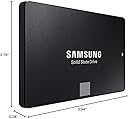
The Samsung 860 EVO 500GB SATA III Internal SSD combines cutting-edge V-NAND technology with blazing sequential read/write speeds up to 550/520MB/s. Designed for professionals demanding fast, reliable storage, it offers AES 256-bit hardware encryption, broad OS compatibility, and a 5-year warranty. With 1.5 million hours MTBF reliability and a compact 2.5-inch form factor, it’s the ultimate upgrade for boosting productivity and safeguarding your data.


| ASIN | B0781Z7Y3S |
| Additional Features | 5-Year Limited Manufacturer's Warranty |
| Best Sellers Rank | #184 in Internal Solid State Drives |
| Brand | Samsung |
| Built-In Media | 2.5" (7mm) SATA III (6Gb/s) SSD & User Manual (All Other Cables, Screws, Brackets Not Included). |
| Cache Memory Installed Size | 500 |
| Color | Black |
| Compatible Devices | mac, windows |
| Connectivity Technology | compatible with SATA 3 Gb/s & SATA 1.5 Gb/s interface |
| Customer Package Type | Standard Packaging |
| Customer Reviews | 4.8 out of 5 stars 76,829 Reviews |
| Data Transfer Rate | 6 gigabits_per_second |
| Digital Storage Capacity | 500 GB |
| Enclosure Material | Opal |
| Form Factor | 2.5-inch |
| Global Trade Identification Number | 00887276232300 |
| Hard Disk Description | Solid State Hard Drive |
| Hard Disk Form Factor | 2.5 inches |
| Hard Disk Interface | Serial ATA |
| Hard-Drive Size | 500 GB |
| Hardware Connectivity | SATA 6.0 Gb/s |
| Hardware Platform | PC, Mac |
| Installation Type | Internal Hard Drive |
| Item Dimensions L x W x Thickness | 3.94"L x 2.76"W x 0.28"Th |
| Item Type Name | Samsung 860 EVO 500GB 2.5 Inch SATA III Internal SSD (MZ-76E500B/AM) |
| Item Weight | 50 g |
| Manufacturer | Samsung Electronics DAV |
| Media Speed | 520 megabits_per_second |
| Mfr Part Number | MZ-76E500B/AM |
| Model Name | 860 EVO |
| Model Number | MZ-76E500B/AM |
| Number of Items | 1 |
| Read Speed | 550 megabytes_per_second |
| Special Feature | 5-Year Limited Manufacturer's Warranty |
| Specific Uses For Product | personal, gaming, business |
| UPC | 887276232300 |
| Warranty Description | 5 Year |
J**I
Easy to clone and install
I have an older ASUS laptop that was given to me by someone who purchased a new HP. This unit had only 4GB RAM and a 500GB spinning-hard-drive. So I upgraded RAM to 8GB and bought this Samsung 860 EVO 500GB SSD to replace the old spinning-drive. This SSD arrived and I needed to buy a $7 USB-to-SATA III cable here on Amazon so I could clone the old hard drive to it. There is a lot of chatter on here about people wondering about the best ways to clone existing drives onto these SSD devices. In my case, I decided the simplest thing to do was to use something I could boot from a USB, so it wouldn't matter what operating system was on the old drive I could clone anything. So I downloaded Tuxboot and Clonezilla and ran it to install onto a USB. Super-simple process and I was ready to roll. I then hooked up the SATA end of the cable to the SSD and the other to an open USB port on the laptop, stuck the bootable USB I had just made into another and turned on power. Booted right up to Clonezilla, hit enter through every default, ensured it was using the 500GB spinning-drive for its source and the new 500GB SSD for the target, and within about a minute it was off and running. You are presented with a lot of options. I chose the simplest, device-to-device rather than doing the source-to-image, then image-to-target. Process took around 2.5 hours and then I shut down, removed the old drive from its caddy and replaced it with the SSD, hit the power switch and the system immediately booted right up to where I had left off before I cloned it! There are a lot of ways you can clone existing drives to these SSD's. You might even want to just fresh-install your system onto one of these SSD's and that's fine. I didn't want to take the time to do that. But for me, using that $7 cable I bought here on Amazon, with the Samsung EVO 860 SSD I bought here on Amazon, and free Clonezilla install-to-USB I was able to effortlessly clone the old drive to the SSD and boot right up with it without any issues whatsoever. I had zero issues. A few benefits from having gone through this: 1. I now know how to clone a laptop drive to an external drive 2. No more motor to spin a drive, so no more extra draw on the laptop's battery to keep one running 3. No more heat from a drive motor that's constantly running 4. Excellent performance and speed with this Samsung To benchmark it for you, the laptop originally took just over two minutes to boot up. After upgrading its memory from 4GB to 8GB boot time dropped a bit, to 1.5 minutes. But after replacing the hard-drive with this SSD boot time is now 30-32 seconds, from hitting the power-switch to login. And everything else on the system is much, much faster without the extra seek times and slowness of that old spinning drive. Time will tell but so far this Samsung is functioning great, was easy to clone to, Clonezilla recognized it right away (as did Tuxboot), and it booted in my system the first time after the cloning was done. And this thing is just super-fast. Plus it's a Samsung EVO. From all I've heard and read, these are pretty reliable devices with a reliability of something like 1.5 MILLION hours. That's 62,500 days or about 171 years! Try getting that kind of reliability from a spinning hard-drive! Bottom line is these are known to be great devices. There are duds out there but by-and-large it's hard to beat a Samsung EVO device for its price-point, reliability, and performance. That's why I spent the extra $$ rather than going to a cheaper, edge-brand type SSD. I have both old and new equipment and my older stuff recognized and worked with it just fine and so far it's a screamer. I highly recommend.
T**H
Outstanding Performance and Storage Capacity: Samsung SSD 860 EVO 4TB Review
I recently upgraded my computer's storage with the Samsung SSD 860 EVO 4TB 2.5 Inch SATA III Internal SSD (MZ-76E4T0B/AM), and I couldn't be happier with the performance and reliability it offers. As someone who deals with large files daily, this SSD has been a game-changer for my workflow. **Blazing Fast Speed** The read and write speeds on this SSD are remarkable. I noticed an immediate improvement in my system's boot time and the speed at which applications load. Large file transfers, which used to take minutes, now complete in a matter of seconds. This SSD truly lives up to Samsung's reputation for speed and efficiency. **Generous Storage Capacity** With 4TB of storage, I no longer worry about running out of space. This is perfect for anyone with a vast collection of photos, videos, and other large files. The capacity allows me to store everything I need with room to spare for future needs. It's a great solution for both personal and professional use. **Easy Installation** Installing the Samsung 860 EVO was straightforward. It fits perfectly into the 2.5-inch drive bay in my desktop, and the included software made cloning my old drive a breeze. Even if you're not particularly tech-savvy, you'll find the process simple and quick. **Reliability and Endurance** One of the standout features of this SSD is its reliability. Samsung has a strong track record in the SSD market, and this model is no exception. With advanced data protection and impressive endurance ratings, I feel confident that my data is safe and the drive will last for years to come. **Value for Money** While the price might seem steep at first glance, the performance and storage capacity justify the investment. Compared to other SSDs in the market, the Samsung 860 EVO offers excellent value for the features it provides. **Final Thoughts** Overall, the Samsung SSD 860 EVO 4TB is an exceptional product that delivers on all fronts. Whether you're looking to speed up your system, need ample storage space, or want a reliable drive for your data, this SSD is a fantastic choice. I highly recommend it to anyone in need of a high-performance, high-capacity internal SSD.
D**Y
Wowowowowowow!
I feel like I have a new laptop. I have a Lenovo ThinkPad Edge 431 with a Core i7-3632QM CPU @ 2.20GH processor and 8GB of RAM, running Windows 7 Professional, which were pretty good specs when I bought it five years ago. It has been a decent, reliable performer, but continuous software bloat has resulted in increasingly slow performance. I run maintenance utilities regularly and have a minimum of the normal “junk” that slows a PC down, but you can only make an old horse run so fast. Or so I thought. I downloaded a copy of HDTune to evaluate the hard drive, and was chagrined to learn how slow it was compared to state-of-the-art drives even though it was performing at its rated ability. It was time to try one of these new-fangled SSD’s, especially considering how inexpensive they’ve become. Whoa! My start-up time has decreased from an average of 3:20 to a mere 0:45, a decrease of 75 percent! Everything is much snappier and responsive, and programs load RIGHT NOW. What a change! The Windows Experience Index went from 5.9 (the lowest rating being the Primary Hard Disk score) to 6.5 (driven by the graphics, which is not a priority in a business laptop). The Primary Hard Drive score is now 7.9, which is the highest it can go. I didn’t realize when I ordered this that I would also need a USB adapter for a SATA drive to make the transfer, so that was a second Amazon order before I could start. I then downloaded the free transfer software from Samsung and it took about 45 minutes to transfer 360 GB of data from my HDD to the Samsung SSD. Swapping the drives was a piece of cake, although that would depend on what laptop you have. For my ThinkPad, it was a matter of removing three screws to remove the bottom cover, then four screws to remove the bracket holding the old hard drive, and then four more screws to take the HDD out of the bracket to make room for the SSD. Reassembly and the insertion of the eleven little screws took just a few minutes. I restarted my ThinkPad and it was as though nothing had changed…except it was FAST! When I ran MS Word 2010 it noticed a change in hardware and wanted to re-register with Microsoft automatically, so I let it do that, but that was the end of the install process. I cannot recommend this upgrade more highly to anyone who has a worthwhile laptop with the weakest link being the speed of the HDD. --------------------- Update 7/27/19: It has now been almost four months since I upgraded my ThinkPad with this product and my opinion has only gotten better. The replacement of the mechanical spinning HD with this SSD has increased my effective battery life tremendously. The SSD uses less energy, of course, but even more significant is that my PC's new ability to awake from sleep mode almost immediately allows me to set a much shorter time delay between inactivity and forced sleep mode. I'm also much less reluctant to deliberately put the ThinkPad into sleep mode because now it will start up again so quickly when I need it. If I'm sitting in a one hour meeting, my PC can easily go to sleep several times during that interval (and I don't mean only that the screen goes dark), and I get it to crank back up and log me in in just a few seconds with just a couple of slaps at the space bar. Awesome!! When plugged in, I used to leave my PC running all the time during the day even when it was unattended, because the startup time was so interminable and I didn't want to go through it more than once daily. Now I've gotten into the habit of putting it into sleep mode whenever I plan to be away from it for a while, just to save energy. If I plan to be gone for several hours, I'll even do a full shut down because, again, it's so easy to get it up and running again when I return. I also need to add that I upgraded to Windows 10 (which is still free, even though Microsoft keeps it a secret), which helps startup time even more. My old ThinkPad really zips along better than when it was new. Thanks, Samsung!
M**H
Samsung quality and performance are great
Perform as well as new and very fast performance for an ssd. Samsung quality is nearly unmatched for qualty and performance. Using five 1 TB drives in a raid 5. Two nvme drives for programs and backups.
J**A
Nice upgrade
I have a 8 year old dell xps that was getting a bit slugish but has basically been a great laptop. Although the original hard drive was not throwing up any red flags I felt that an eight year old hard drive was pushing my luck, plus I knew I could pick up some real benifits in loading speeds with a ssd drive.I purchased the 860 evo 500 gig which will more than suffice my needs for storage space, and Samsung gets high marks for their products.The installation did not go as smoothly as I would have liked. I cloned the new samsung drive with Macrium Reflect, and although the cloning process completed when I swapped the drives Windows 10 would not load.Next I took the new drive out ,reinstalled the old and used the Samsung data migration software to clone the drive. It however will not copy OEM partitons installed on my old drive , which I didn't like. Reinstalled the new drive, Windows loads , but when I tried to to a system image backup with Macrium Reflect I can't see my external drives.Finally after messing about some I decided to leave the new drive in my laptop, was able to get it into it into a Macrium Reflect rescue environment and was able to install the backup image I took of my system just before starting this process onto the new Samsung drive. My basic point is that if Samsung data migration software can't duplicate all the partions on your hard drive , then I wouldn't use it.All I know is when I restored the image with those partitions everything started working right.This is just my exterience and maybe for 99 out of 100 people Samsung Data Migration might work fine, but when I clone a hard drive I don't want somebody else deciding to leave partitions out of the new cloned drive. All that being said , the new samsung drive is a fantastic upgrade to my old dell laptop. Loading windows at starup takes about one third the time, all my programs load much more quickly,and during internet surfing pages also load much more quickly.I made a system image as soon as I was satisfied everthing was working ok and data transfer rates were significantly higher. I am very satisfied with my purchase. I would however strongly suggest that anyone replacing their hard drive use a progam like Macrium Reflect Free to make an exact copy of your hard drive before starting on some external storage device so that you have options if things don't go as planned, as with my experience.I am not knocking samsung down any stars because I've found issues tend to crop up with computer hardware and software swaps, and most often they can be resolved. When I think about how incredibly complicated they are it's amazing they work.
A**R
Big boost to a 6-year-old laptop. Boot times and data access MUCH faster. Easy migration.
I have a 6-year-old laptop I bought in December 2012 (an HP Pavilion with a Core i5-3210M, 8GB RAM, NVDIA graphics with 2GB memory, and a 750GB HDD that was about 25GB from being full, which was probably the root of most of my performance problems). It was never screaming fast, but it has been a nice little workhorse that has allowed me to edit photos and video and be productive with MS Office for several years. When I upgraded to Windows 10 a couple years ago, I definitely saw significantly longer boot times than with the OEM Windows 7 install. And whenever Windows 10 would download system updates on its own (annoying) timetable, my PC would grind to a frustrating halt as the HDD would clock endlessly. I was considering buying a new laptop (I’d mostly abandoned the concept of “PC upgrades” many years ago because the technology changes so fast and new PCs have generally been affordable, and upgrades seemed like a waste of time and money). But all the reviews said installing an SSD would drastically improve performance, so I decided to install the Samsung EVO 1TB SSD -- and the hype was not wrong! My PC went from booting in 2-plus minutes to booting in about 15-20 seconds. MS Office programs now open almost immediately, and the Windows 10 Photos app, which always resulted in long grinds of my hard drive while accessing my thousands of photos and building thumbnails, now responds *so* much faster. Everything local is snappier and more responsive and more satisfying. I can now navigate my system with much more speed and ease. I had no idea just how much of a bottleneck my HDD truly was, and how much gain you could realize with an SSD (even a SATA one). The migration was surprisingly simple. I installed the Samsung data migration software (take note — this is a *different* program than the Samsung Magician software, which is useful only *after* you’ve migrated your data and installed the SSD), and it copied my system partition and C drive over to the new SSD. The process was pretty straightforward. It automatically made the decision to leave behind my long-useless OEM factory recovery partition and related HP_TOOLS partition, which was great, because I was planning on deleting them anyway. It automatically sized my new C partition to fit the larger SSD, since I was going up from 750GB to 1TB of total space. After copying, it instructed me to shut down the computer, swap out the drives, and restart. I did, and everything was right where I left it, but with much improved performance and boot times. I’ve decided to add an SSD to my 9-year-old first-generation Core i7 desktop computer as well. It’s still running, so why drop a grand when I can drop $150 to make it run so much better and increase my storage space to boot? (Note: I can’t comment on reliability as I’ve only had the drive installed for one day. But so far, so good.)
M**Y
Upgrade Your Computer's Performance
As a tech enthusiast, I'm always on the lookout for ways to improve my computer's performance. And I have to say, the Samsung SSD 860 EVO 1TB Internal SSD did not disappoint. First off, the installation process was a breeze. The drive is a standard 2.5-inch form factor, making it compatible with most laptops and desktops. And the included software made it easy to clone my existing hard drive and transfer all of my data onto the new SSD. But what really sets this drive apart is its lightning-fast speed. The 860 EVO uses Samsung's V-NAND technology, which delivers read and write speeds of up to 550MB/s and 520MB/s, respectively. And the 1TB capacity means that I now have plenty of space to store all of my important files and programs. I've noticed a significant improvement in my computer's overall performance since upgrading to this SSD. My computer boots up faster, programs open instantly, and file transfers are lightning-fast. And the best part is that the drive is incredibly reliable, with a 5-year limited warranty and a 600TBW endurance rating. Overall, I would highly recommend the Samsung SSD 860 EVO 1TB Internal SSD to anyone looking to improve their computer's performance. It's a reliable, lightning-fast drive that will drastically reduce load times and improve overall speed. So if you're tired of waiting around for your computer to catch up, don't hesitate to make the switch to the Samsung SSD 860 EVO!
P**N
Good Samsung Quality
I bought this SSD (512 GB Samsung 860 EVO) to replace an older Samsung SSD that is over 10 years old. The old SSD was the Windows boot drive, so is the new one This review details the cloning and installation process. Essentially, you are going to clone / migrate the data (create an exact copy) of the old drive and apply it to the new drive. You may want to invest in an external SSD enclosure to help in the cloning process, I bought and used UGREEN External Hard Drive Enclosure Adapter USB 3.0 to SATA Hard Disk Case Housing for 2.5 Inch 9.5mm, from Amazon as well. It's about $10 but it will make your life easier AND once you're done, you can use it to house and use the old SSD (or any similar new or old SSD, as an external drive. So it's really useful! You may have read/ heard about problems some were having using the data migration that Samsung provides (Data Migration software available from Samsung website). I haven't tested or used this software so I will not comment on it. But I did download it and installed it (installation was problematic and got hung many times....upon googling, I discovered one must disable Windows Anti Ransomware protection (under Windows Security....) strange, but I disabled it and the installation worked. Don't forget to re e-enable the Ransomware protection when done!! So, assuming you have the SSD data enclosure, place the SSD inside it, connect to the PC using the included USB cable and you're ready to clone / migrate the data. Cloning Process: I used Macrium Reflect. You should really use the latest version, and it's not free anymore, but they offer a 30 day trial which will do the job. PS: The older versions seemed to have an issue with a fully updated Windows 10. Once Macrium Reflect is up and running, the FIRST THING you should do is create a Recovery Disk (find it under Other Tasks in the menu, and it's called Create Rescue Media). It's easy, just follow the prompts. Keep it aside just in a safe place, in case (this is useful as a Windows Recovery disk, which every one should have). There are videos on Youtube that show you what to do exactly when using Macrium Reflect, do watch them, they are easy and useful. But especially if your old drive / SSD and the new SSD are not the same size! Look for: How to Clone Windows from a Hard Disk to an M.2 SSD by a guy called ACCESS RANDOM. If the (old and new) drives are of different sizes you MUST watch: How to clone a disk drive using Macrium Reflect and resize the partition by a guy called Alex Kang. It has one step in that is essential to handling the different sizes issue. Both videos are excellent and walk you through each step. Once the cloning is done, remove your old SSD and install the new SSD in your PC (or laptop) using the same cables. Reboot the PC and test the drive for a few days. If you're completely happy and the system is stable, feel free to either place the old SSD in the external enclosure and use it any way you want or use the old SSD in your PC / laptop as extra storage (after erasing the old data). Speed: Any SSD is much faster than the fastest regular (spinning) hard drive. This SSD is fast but not the fastest on the market but it's perfect for booting Windows aka, as a boot drive, (Windows boots up in 10-20 seconds, depending on your PC). With this SSD I am surfing the web in less than 20 seconds from powering up. There are faster SSDs but gaining 2-3 seconds in Windows boot time is not really important to me. In closing, one final reminder: Do watch those videos!!
R**.
Has brought new lease of life to old PCs
Have installed 5 of these now in different computers & laptops to replace magnetic drives. All working well and have made a huge improvement to Windows startup times. Programs load 5-6 times faster than before. Overall a great product!
J**S
Excelente: bueno, bonito, barato, extensa garantía y durabilidad
Me gusto totalmente este producto, es excelente. Utilice esta unidad SSD para sustituir al disco duro mecánico principal de mi laptop y lo que decidio la compra frente a otros es que en el momento en que lo adquiri estaba en una inmejorable promocion y precio. Lo bueno: - Cumple sobradamente lo que promete en la descripción y no tiene que envidiarle nada otro tipo de tecnologias que anuncian otros SSD de la competencia. - La garantia es de las mas amplias en el mercado ... te ofrecen muchos años con garantia y esto es inigualable por la competencia. - la vida útil en la escritura de archivos es superior, por lo que no tendras que preocuparte que a los pocos años deje de escribir datos. En este apartado encontraras SSDs en el mercado muy baratos pero lo que no te dicen es que su bajo costo esta dado porque te durara pocos años escribiendo datos (hay quienes dicen que 5 o hasta 6 años). Recordemos que en este tipo de tecnologias es importante cuantas veces se podra escribir y leer datos en la unidad de almacenamiento. En los SSDs es un aspecto crítico este apartado asi como su costo independientemente de la marca. - Con su intalación, la inversion que hagas se ve reflejada inmediatamente en tu computadora y es perceptible totalmente tanto que pensaras el porque no hiciste este cambio desde hace tiempo. Sentiras que estas ante una nueva computadora, por la velocidad de apertura de las aplicaciones o programas, encendido y apagado, aun con un procesador de poca monta. -Tiene un peso imperceptible. Lo malo: - En la instalación el software propietario decia que no podia hacerlo funcionar con la computadora; sin embargo como hice una instalacion desde cero del Sistema Operativo, éste se encargo totalmente de la configuración y puesta en marcha. - Tecnologia que es costosa y que año con año va reduciendo los precios, pero esto sucede con todos las unidades de disco duro. - Si tu desconoces como se hace su intalacion lo preferible es que lo lleves con el personal capacitado que realice este paso. Nota: ideal para instalar como dispositivo de persistencia principal o tambien en un caddy. Si o si, una vez instalado deberas de buscar en internet la forma en como debes de configurar tu computadora para que realice un uso mas eficiente de la unidad SSD instalada, asi como para prolongar su vida útil. Son consejos, configuraciones del sistema operativo que se deben de cambiar, y especificaciones tecnicas, nada del otro mundo pero necesarias para su uso adecuado.
A**R
SSD EVO Samsung
Produto muito bom, rápido e confiável. Embora um pouco mais caro que os modelos QVO mais recente, vale a pena pois dobra o número de operações de leitura/escrita, ampliando a vida útil do dispositivo além da garantia de 5 anos. Se comparado aos discos mecânicos (HDD, com motor) a velocidade de acesso é notoriamente maior. Em suma é uma boa opção para melhorar desempenho a um custo razoável. Outra dica interessante é ampliar a quantidade de memória RAM. Dependendo do perfil de uso recomendo 16GB, a combinação RAM/SSD é fundamental para um computador rápido, naturalmente depende do processador e canais de comunicação da placa-mãe (e qualidade).
E**L
Immer noch brauchbar
Das ist das zweite Gerät davon. Hatte seinerzeits gute Erfahrungen damit gemacht. Bin aber jetzt auf anderes, schnelleres Speichersystem umgestiegen .
C**S
All around excellent SSD! Great in so many ways.
Excellent all-around SSD for your average consumer. It has a very large endurance rating in terms of terabytes written. The 1TB version is rated for 600 terabytes written over it's lifetime. If you write 50 gigabytes per day you would take 32 years to reach the 600 terabyte write rating. An average consumer will not be writing 50 gb per day. Normal operating system activities will use at least half a gigabyte per day, sometimes as much as 5 gb per day. Your OS is constantly writing stuff to the disc as you're doing stuff. If you're someone who downloads a lot of movies/tv shows or programs then you might see up to 20 to 30 gb per day of writes. The point though is even if you're downloading/installing tonnes of programs or videos constantly you'd really struggle to reach 600 terabytes written before a conventional hard drive would be expected to fail due to a failure in it's moving parts. So unless you plan on using this for a server application where you can expect to be writing more than 0.5 to 1 terabyte e per day this drive will be more than enough. The drive itself pretty much saturates the SATA III connection, which has a maximum bandwidth of 600 megabytes per second. Sequential read speeds are over 500 megabytes per second for pretty much all file sizes/queue depth's. Sequential write speeds for small files will be over 500 megabytes per second typically. This SSD has a 'turbowrite cache', which is a higher speed SLC flash memory. I couldn't pin down how large the cache is on the 860 EVO 1TB; but I believe it's about 60gb. For the first 60 gigabytes of writing the drive will use the SLC cache and write speeds will be higher than they would otherwise be. When that cache runs out the drive switches to using it's normal TLC flash memory, which is a slower but cheaper type of memory (it's what makes up the drives storage capacity). Here's where things get complicated though. For larger drives like the 1TB model the larger number of flash modules in the drive means that the drive can write to more modules at once, and hence it's write speeds are faster. As a result you don't see a performance reduction when you switch from the SLC cache to the main TLC memory in terms of write speed when we're talking about the 1TB versions or larger. For the 500 gigabyte version or the 250 gigabyte version however we do see a significant write speed reduction when the turbowrite SLC cache runs out. In practice this means that the 1TB model can sustain about 450 megabytes per second of write speed no matter how big the file you're writing is. The 500gb model however starts at 450 megabytes per second but after it's written about 60 gigabytes (size of the SLC cache) the write speeds go down significantly. They drop to about 270 megabytes per second. To be fair most people won't need to write more than 60 gigabytes at once, but it's still a drawback of the smaller sizes. I should also mention that the 860 EVO for the 1TB model has 1 gigabyte of DDR4 RAM which the controller uses to decrease access times by keeping a map of where the data is being stored. This is part of the wear leveling algorithms to ensure that no flash cells degrade faster than the others.
Trustpilot
3 days ago
2 weeks ago