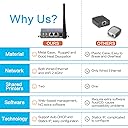
🚀 Upgrade your legacy printer to wireless powerhouse—because your workflow deserves freedom!
The CHEECENT CR202 Wireless Print Server transforms wired USB printers into network-ready devices with dual USB ports, supporting WiFi and Ethernet connections. Compatible with Windows, Mac, and Linux, it enables multiple users to share printers without a dedicated host PC. Featuring a compact metal design with mounting options, it’s ideal for professional environments seeking cost-effective, flexible printing solutions. Note: Requires manual setup and is not plug-and-play.


| ASIN | B0B19T1GKY |
| Best Sellers Rank | #5 in Computer Networking Print Servers |
| Customer Reviews | 3.9 3.9 out of 5 stars (288) |
| Date First Available | July 30, 2022 |
| Is Discontinued By Manufacturer | No |
| Item Weight | 8.8 ounces |
| Item model number | CR202 |
| Manufacturer | CHEECENT |
| Product Dimensions | 3.82 x 2.6 x 0.98 inches |
Z**S
Works excellent - Highly recommended.
This device isn't exactly a straightforward print server. The sellers know this device setup is confusing - they tell you constantly to read and follow the instructions or follow the videos on YouTube. Listen to them and do that. I've been in IT for quite a while and when you get the product, you think you'll know better --- you don't. This device is set up very specifically and you need to follow the instructions even when they seem weird or wrong. I assume the hardware was a firewall or something and was repurposed by Cheecent as a print server. Once you understand that the hardware is sort of universal, it's actually a lot easier. It's got functions, items, routing tables, DHCP server, I assume a firewall in there somewhere, etc that just aren't used for being a print server. Here are the cliff notes. The LAN port is used specifically for configuration. It does nothing else. I'm sure for some other applications that use this hardware LAN is used for a whole bunch of other stuff - in this print server device, it's used for nothing but initial configuration. It's default setting is 192.168.6.1. Connect your laptop using ethernet - I don't believe you need a crossover cable. You'll need to statically assign your computer a IP on the same subnet - 192.168.6.100, for example. This is only a method to configure the print server, once you're done with the configuration step, you'll never need the LAN port again, unless you need to reconfigure something. Configure your WAN port with an internal address on the same subnet as everything else on your network. You do this for the wireless or wired port, one or the other. If your internal gateway ip is 192.168.1.1, set it up to something static that's not used, they recommend 192.168.1.248, but you can do whatever as long as it's not currently in use on your network. Set up your subnet mask etc; DNS shouldn't be needed or the gateway in normal circumstances. Don't use DHCP, as you're going to use this IP as the printer's port, and you don't want it changing. You might want to visit the print server page at this step and turn off the bi-directional printing option on the USB ports. It's recommended in the instructions; I turned it off and never looked back. Hook up your printer to one of the usb ports, plug the power in. Hook up your network cable to WAN if you're using wired, or nothing if you're using wireless. Wait a couple of minutes for it to boot up. For printer installation on the computer, install as normal and use a jet direct port with your WAN IP colon corresponding port number. For example, 192.168.1.248:9100 for USB1 or 192.168.1.248:9101 for USB2. I'm sure you could hack this thing and do a bunch of stuff with it. I'm not sure why or what you would want to do, but it seems the hardware is general purpose. Maybe they could have made set up easier, blocked the lan port with a piece of tape and allowed management from the WAN port; I don't know nor does it matter. Once it's set up, I'm not planning on ever touching it again as long as I don't need to change my wireless name or internal IP address. As a print server, once it's set up it's been rock solid which is by far the most important thing. BTW I'm using this with a Zebra Eltron LP2844 CTP with an mfg date of 2004 and on an iMac. Works great - but wasn't on the compatibility list. If anything changes, I'll update the review, but I'm really happy with this device.
C**G
More features than most people need...
So far this printserver is working well. Easily mounted to the side of the printer with a couple of Command Strips and a 6 inch USB cable. This thing has WAY more functionality than most people need, including a firewall, switch, DHCP server, etc. I disabled the firewall since I only need this thing to share a USB printer on a local network. The web interface is very slow and not intuitive at all (-1 star). After changing the default admin password, you can expose the admin interface to the "WAN" port to allow access from the local network without having to set a static IP and physically connect to the "LAN" port every time you need to manage this device. Great little sturdy metal printserver allowing you to share 2 USB printers on your network.
E**O
LAN printer server when your printer is not found.
This is a printer server ! Connects your old printer to a notebook computer via WiFi when WPS or Air Print can’t find it. When it’s working I becomes a network printer, not a plug and play wireless printer. Worked well on first attempt at connecting. Small and compact. Well made. Comes with decent instructions and additional support for technical assistance. Why I needed this ? My printer HP Deskjet cannot connect to my Xfinity Gateway and IQ Fiber Eero. I spent hours trying different ways to make it visible but still not good. Now my printer works with my notebook computer as the default printer. The printer is still not visible by AirPrint or by HP Smart app. Need to actually go into settings and input the ipv4 address to connect to the printer server. In this mode it does it job well.
K**.
BUYER BEWARE - Had for 4 months and then had to trash it
I got this and set it up with no issues. There was great support videos available online and the guide provided helps you to get this working out of the box. I was able to get my Brother Laser printer setup and it worked flawlessly for months. I was happy because it solves an issue I have had for a long time. HOWEVER, my ISP changed some of my settings on my router and I was forced to reconfigure it to get it to work again. I ran into some issues and in the process of trying to fix it, I was reading other reviews. One reviewer mentioned that this print server contacted Chinese servers once plugged into his network. and without any configurations done to it. This also was the case for me. Additionally, the print server started asking me for my router information such as my Serial Number and Password. It did not work the same way I set it up originally so I immediately unplugged it and threw it away. I hope Amazon removes this product from their store because it seems like it is allowing Chinese hackers a backdoor into peoples personal networks.
A**X
Ich nutze den Druckserver sein einigen Jahren. Einrichtung mit Anleitung hat gut funktioniert! Bis heute keine Probleme.
A**A
It's working fine & build quality is amazing
B**S
Artigo de acordo a descrição apresentada
A**R
Works great, easy set up
G**H
Fonctionne comme prévu, aucun souci. L'installation est par contre très mal expliquée sur la notice. Voilà comme j'ai fait pour mon Windows 11, en me connectant en Wifi pour une imprimante HP Deskjet 2700e: connecter l’imprimante au serveur par le port USB se déconnecter du réseau de sa box internet. se connecter au réseau du serveur: CR202 etc.. le mot de passe est écrit sur le serveur lui-même mais c’est admin123 aller sur la page: http://192.168.6.1. Les identifiants sont admin/admin dans cette page, aller sur “Advanced Network” > “Print service”. Recopier le lien dans “Link” (http://192.168.6.1 etc…). Il faut maintenant installer l’imprimante dans Windows: “Settings” > “Printers & Scanner”. “Add device”. “Add a new device manually” Puis sous le box “Select share printer by name”: Coller l’adresse recopiée avant dans “Link”. Puis choisir le pilote le plus proche de l’imprimante. J’ai pris HP Deskjet 2460 pour mon imprimante HP Deskjet 2700e.
Trustpilot
1 week ago
1 month ago