Desertcart purchases this item on your behalf and handles shipping, customs, and support to Argentina.
🚀 Elevate your Wi-Fi game with power, speed, and control — don’t get left offline!
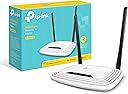
The TP-Link N300 Wireless Extender TL-WR841N delivers up to 300Mbps Wi-Fi 4 speeds with dual 5dBi high-power antennas for enhanced coverage and stability. Supporting multiple modes including router, range extender, access point, and WISP, it offers versatile deployment options for home or small office. Equipped with fast 10/100 Mbps Ethernet ports and WPA2 security, it ensures reliable wired and wireless connections. Easy to set up and backed by a 2-year warranty plus 24/7 technical support, this device is a top-rated, budget-friendly solution for seamless, secure internet access across multiple floors and devices.


| ASIN | B001FWYGJS |
| Antenna Location | Gaming |
| Best Sellers Rank | #13,753 in Computers & Accessories ( See Top 100 in Computers & Accessories ) #435 in Computer Routers |
| Brand | TP-Link |
| Built-In Media | 300mbps Wireless N Router |
| Color | White |
| Compatible Devices | Personal Computer |
| Connectivity Protocol | wi-fi |
| Connectivity Technology | Ethernet, Wi-Fi |
| Control Method | App |
| Controller Type | vera |
| Coverage | Standard Home/Small Office Coverage |
| Customer Reviews | 4.2 out of 5 stars 78,329 Reviews |
| Data Transfer Rate | 300 megabits_per_second |
| Frequency | 2.4 GHz |
| Frequency Band Class | Single-Band |
| Item Dimensions L x W x H | 4.6"L x 6.9"W x 1.3"H |
| Item Part Number | TL-WR841N |
| Item Weight | 8.82 ounces |
| LAN Port Bandwidth | 10/100 megabits per second |
| Manufacturer | TP-Link |
| Maximum Upstream Data Transfer Rate | 300 megabits_per_second |
| Mfr Part Number | TL-WR841N (UK) |
| Model Name | TL-WR841N |
| Model Number | TL-WR841N |
| Number of Items | 1 |
| Number of Ports | 5 |
| Operating System | 0, Microsoft Windows 10/8.1/8/7/Vista/XP/2000/NT/98SE,MAC OS, NetWare, UNIX or Linux |
| Other Special Features of the Product | Access Point Mode, WPS |
| Router Network Type | hybrid |
| Security Protocol | WPA2-PSK, WPS |
| Special Feature | Access Point Mode, WPS |
| UPC | 845973051242 |
| Unit Count | 1 Count |
| Voltage | 9 volts |
| Warranty Description | 2-year warranty |
| Wi-Fi Generation | Wi-Fi 4 |
| Wireless Communication Standard | 802.11b, 802.11g, 802.11n |
| Wireless Compability | 802.11b, 802.11g, 802.11n |
E**C
Great unit for a great price. What's not to like? Instructions for setting up as a repeater / range extender
Instructions for setting up the TPLink WR841N wireless router as a repeater: This is a great unit for a ridiculously low price. It can be used as a repeater (a.k.a. WiFi range extender). Setting this unit up as a repeater is pretty simple, but the manufacturer doesn't provide step-by-step instructions. I noticed some other instructions posted in these reviews had a number of steps that were not necessary, and were missing some steps. Being an Engineer, I couldn't help but proposing an improvement... These instructions assume you are connecting to a WiFi access point (AP) with a working Internet connection. Abbreviations: [example] = example values used during my setup. Yours might be a bit different. SOURCE-AP = the access point / router generating the wireless signal you want to repeat. REPEATER-AP = the access point / router repeating the wireless signal, the one that we are setting up. SOURCE-NET = the SSID (network name) of the wireless signal you want to repeat. REPEATER-NET = the SSID (network name) of the repeated wireless signal. Before starting, gather the following information: - the LAN/wireless side IP address of the control interface for the SOURCE-AP [192.168.3.1] - the subnet the SOURCE-AP is using on the LAN/wireless side. [192.168.3.x] - the SOURCE-NET name [GROUND] - the encryption type and password [WPA-2 PERSONAL, xxxx] - the channel the wireless signal to be repeated is on. [3] To determine the LAN/wireless IP address and subnet of the SOURCE-AP, look at the IP address and default gateway of a device directly connected to the SOURCE-AP. (Open the Network connections folder, click change adapter settings, and view status and then details in Windows). For the channel, it is preferable to go to the SOURCE-AP and set the channel to 3 instead of "auto" so it does not change, and uses an unpopular channel likely to have less interference. If you don't control the SOURCE-AP (e.g. you are connecting to your neighbor's WiFi), you can find out what the channel is during the setup steps below. Here we go: 1. Plug the power into the REPEATER-AP. If any settings have already been changed on the device, press and hold the reset button on the back for ten seconds until all lights are illuminated to indicate reset happening. Reset is not necessary if the unit is fresh out of the box. 2. Plug a PC into a LAN port on the REPEATER-AP with the supplied LAN patch cable. I used my laptop. Make sure the LAN adapter is set to get an IP address automatically. (Open the Network connections folder, click change adapter settings, and view properties in Windows). Make sure the LAN adapter is the only one enabled. Disable the wireless adapter. 3. Open a browser and go to tplinklogin dot net (replace dot with a . - amazon doesn't allow URLs here...) or 192.168.0.1, the default address of the control interface of REPEATER-AP. The default username, password is admin, admin. Don't do the quick setup. 4. Click "Wireless" on the left column menu. On the Wireless Settings page that appears: a. Under the dropdown list for "Channel", select the channel the wireless signal to be repeated is on. [3] If you don't know, skip this step and the unit will force you to select the correct one after the "Survey" step below. b. Click the "Enable WDS bridging" checkbox. c. Click "Survey". A list of SSIDs appears. Click "connect" on the one that is SOURCE-NET. [GROUND] All of the fields are automatically populated except for the password. d. Enter the password and click Save. Wait ten seconds for the processing to finish. e. At the top of the page beside Wireless Network Name, enter an name for REPEATER-NET [R1] and click Save. 5. Click "Wireless Security" on the left column menu. Select Personal WPA2-PSK, AES encryption and enter a password for REPEATER-NET. 6. Click "DHCP" on the left column menu. Click the DHCP disable radio button. Click Save. Ignore the reboot warning. 7. Click "Network" on the left column menu. 8. Click LAN. Change the IP address to one in the SOURCE-AP subnet that is not being used by any other device and click Save [192.168.3.200]. A reboot warning will appear. Click OK and let the unit reboot. 9. The address in the browser will magically change to the IP address you entered in the previous step. This is the new IP address for the control interface on REPEATER-AP. You will be prompted to log in again. You should now have Internet connectivity! There is no "half-hour waiting period" others have noted. Perhaps that was due to misconfiguration. Open a new tab in your browser and go to news.google.com to verify. Wireless devices can now connect to REPEATER-NET. Wired devices can connect to REPEATER-AP. Both get Internet access through SOURCE-AP. Ain't life grand? Troubleshooting: It is possible that it may take some time to negotiate the wireless link between SOURCE-AP and REPEATER-AP. Wait two minutes, then refresh the news page. If that doesn't work, power REPEATER-AP off and on. Try news.google.com again. If that doesn't work, wait two minutes, then refresh again. If it still doesn't work, enter the LAN/wireless side IP address of the control interface for the SOURCE-AP [192.168.3.1] in a browser and hit Enter. If you see the control interface for SOURCE-AP, the wireless link is working! Try entering an Internet IP address, like [...] (one of my sites). If you see a page with content loaded, you have Internet connectivity (hooray), but your computer needs to be told a DNS server to use. In Windows, open the Network connections folder, click change adapter settings, properties, IPv4 properties, advanced, and in the Gateway area type in the IP address of the SOURCE-AP [192.168.3.1], click OK, OK, Close and try again. But none of that should be necessary. I have written these instructions with the unit beside me, following my own instructions and it worked first time. I have actually gone beyond these instructions to set up a chain of four of these units to provide wireless coverage from the basement to the fourth floor of a 150-year-old church with stone walls. And it worked! Good luck! P.S. Don't forget to go back in to REPEATER-AP and change the password. The menu item is hiding under System Tools on the left.
E**Z
Priced right and works in minutes
Just received this Home Router with the ARRIS / Motorola SB6121 DOCSIS 3.0 Cable Modem and it took no time at all to hook everything up, sync with cable company and enjoy faster speeds than I was seeing before. The problem started when an aging DOCSIS 2.0 modem/router combo kept dropping internet connection randomly and frequently. Speeds used to be reasonable at 20 Mbps download and 10 Mbps Upload but then after the cable company activated some new cable boxes by sending a signal to the home the problem began and speeds (when working) dropped down to 7 Mbps down and 7 Mbps up. I had attached a separate older router to the modem/router combo which did increase speed but with the constant dropping of internet this was not the solution. I have a Linksys WRT54G2 router that I bought a few years ago and it worked great but now with newer technology and higher demand for wireless this router is not adequate enough for what I need. Signal started to be a problem with this router as it lacks external antennae but when I lived in a 1 bedroom apartment it was fine. I saw the TP-Link TL-WR841N Wireless N300 Home Router was not only more than what I needed but highly liked and reviewed as well as extremely reasonable in price. My old router still costs 3 times as much as this router does. Set-up was super simple. The signal was recognized by my phone, I connected to the network using the password printed on the bottom of the router and went to the set-up page that the quick install directions had instructed me to do. The quick install was very quick without needing any software. Like I said I set up the wireless network from my smart phone. You just have to set an SSID, put in a new password, and save everything and your done. The process was less than 5 minutes including opening the package and plugging everything in. Signal strength was the first thing I noticed as being strong to very strong even two stories above the router which is in the basement. The second thing I noticed was speed. I did not run this router with the older modem so I can not say that it is faster in comparison but the top speed is 300 Mbps which I do not subscribe to but I was getting 40+Mbps download (50 Mbps subscription) and about 15 Mbps upload. This is more than enough to play on XBOX live and stream HD videos to multiple devices without hesitation. I am very happy with this product. ***UPDATE*** After 2 months of use I am still happy with this product. I still regularly see speeds in the 40+ Mbps for download but I average about 35 Mbps, and I see speeds up to 15 Mbps for uploads but average about 13 Mbps. I use the OOKLA app on my Samsung GS4 more often then my other devices, and I am quoting my average and top speeds based on that device but I will note that my iPad and my Mac Mini see slightly higher speeds as I believe the wifi radio is better in those devices. I do see better results also when I am above the wireless router (located in the basement) then when I am at the perimeter of the house. This is actually great news for me as I was worried about the signal not being able to penetrate through 2 floors and remain strong but I see better speed test results in my bedroom (2nd floor) where my Mac Mini, Xbox reside then in the living room (1st floor)where my iPad and GS4 usually are at. More often with my phone lately I am having problems with my wifi dropping because it is telling me that an authentication error occurred. I merely just reselect my home wifi from the list and it connects but then randomly it will give me that error. I looked into it and it appears GS4 phones have this problem but mine just started doing this. I will reset the router and my phone and see if that solves the problem which is a common solution. Other than this small issues, which sounds like my phones problem, I really like this router. For the price it is hard to beat.
M**N
Better performance than expected from a budget router
I've had this router since January 2015 and it has been performing well since then. While I have heard of TP-LINK before, I've never owned any of their products, so I thought I'd give this a try. My previous experience with 802.11n routers was back in 2012 when I was looking for something to replace an old Buffalo WHR-G125 whose wireless radio had died. I bought and tried a lot of different N routers both online and locally, but every N router I tried all seemed to have the same problem, none of them had the same range as the G router I was trying to replace, so I couldn't even use internet in my room at all. I even tried some repeaters and they didn't work well for me either. There are at most 3 walls between the room the router is located in and my room (two ways to reach my room from the room the router is located in) and there's either a bathroom in between or just the hallway. I ended up going back to a tried and true Linksys WRT54GL and that had enough range to reach where I needed it. Fast forward to this year and I was in the market for another router. I wanted to give 802.11n another try since more of my devices also use 802.11n and this was the first router I chose. I mostly got it since I didn't have much money to spend at the time, so I figured for 20 bucks, why not? To my surprise, this router's signal was able to reach my room; awesome! Even though the version of the router I have (v9) is compatible with some third party firmware, I'm still using stock TP-LINK firmware - upgraded to the latest version. With the Buffalo and the Linksys, I used Tomato firmware, but I mostly only had that because their respective stock firmwares didn't allow static DHCP and that's pretty much my biggest need for using third party firmware. TP-LINK's stock firmware has DHCP address reservation built in, which is nice since I want to make sure my devices always get the same IP assigned when connected. One thing I was surprised to see, especially on an inexpensive router is dynamic DNS options. The only thing is, it's limited to only Comexe, DynDNS, and No-IP. I use afraid.org for my dynamic DNS service and unfortunately it's not available on TP-LINK's stock firmware. I'm hoping they'll add it to a firmware update in the future. I have version 9 of this router and the firmware update from October 2014 and newer increased the maximum number of connected wireless devices to 31. I'm not sure what the limit was before then, but I'm sure I reached it before because there were times when we had guests that wanted to use the internet but weren't able to connect. I think a maximum of 31 wireless devices is still a little low, to be honest. Especially these days when every guest who visits has at least a smartphone and sometimes also a tablet per guest. There are currently 13 wireless devices (and can be up to 15, if you count the devices that are powered off right now) connected to my router at the moment and that's just with two people in the house! Those devices include a wireless printer, a portable gaming device, 2 laptops, 2 game consoles, 5 smartphones, 2 tablets, and 2 media streaming devices. The wireless device limit is fine if we have nobody visiting, but it'd be nice if they increase that again. There are a lot of other wireless networks in my area, so it is prone to interference. There's definitely a noticeable drop in wireless internet speed when those other networks are on the same channel, but a quick change to a different channel fixes it. There is an automatic channel selection option, but I manually choose channels 1, 6, or 11 because the Fire TV Stick works better when the router's not on auto. Overall, this is a good router for those on a budget who need to add wireless connectivity. It has good range, stable performance, and just works. I wouldn't recommend it with stock firmware for anyone who needs to connect more than 31 wireless devices - you might be able to increase that limit with third party firmware. For the casual home user, I'd definitely recommend it.
P**M
Does the Job for Which it Was Purchased
My cable company provided us with the usual low quality combo cable modem/wireless router unit, and it started failing after two years. It lasted another four, but the loss of connection between the modem and the cable required me to restart it regularly, this past month averaging about 30 restarts a day. I was schooled on this sort of tech by a friend and was told that many combo units are slow and either the router or the modem part end up failing over time. He strongly suggested I separate the two tasks with dedicated boxes. I bought a much simpler (and more highly rated) version of the one I had that only had the modem function. I purchased this wireless router to pair with it. So far, so good. I have had this router working with my new ARRIS / Motorola SurfBoard SB6141 DOCSIS 3.0 Cable Modem for about a week now and neither have required a single restart and both stay connected properly and do their jobs well. My wireless signal is stronger than with the old Motorola SurfBoard modem/router provided by the cable company. I have experienced zero loss of connection while I have been online. I am happy with this setup. The modem was about $80 or $90 bucks here on Amazon, and this device cost me like $19 (an excellent price for this router, IMHO). I know tons about computers (especially Apple laptops) but know comparatively little about modems and routers (networking, in general, I guess). After consulting with a trusted geek friend and doing a bit of reading online I decided on this wireless router as being "not great, but good enough for my needs" and I would say that I nailed it in this regard. It is not a feature-laden unit with all the bells and whistles and a coffee machine built in. It is simple, and it probably will last for a number of years because of this. If you simply want to connect a few computers to your in-home network this is an excellent router. If you want to run your printer or home stereo through it or have sneaky security needs - well, this is the wrong review for that sort of info. I just do not know. And I just do not care. I am not into these things. This router might be good with all sorts of other stuff. It might suck in that regard. But for my iMac and our three MacBooks it is perfect, with a strong, clear signal throughout our 2,300 sq ft house. Not bad for under twenty bucks...
K**G
Like Mikey says: "Try it. You'll like it.".
For what ever reason, the WiFi environment in my living room recently changed. I live in a high rise in Manhattan. Think lots of concrete and steel. MY ISP's modem and my router (Linksys/Cisco E3000) are located in a back bedroom. The Wifi signal in the living room was weak to nonexistent. I bought a Netgear WiFi extender and that pretty much gave me enough signal strength to stream HD video on my or my wife's iPads & phones. Worked fine for well over a year. But like I said something recently changed and I was getting little to no signal from the extender. At first I thought the extender had fried but that doesn't seem to be the case. My wife and I had just recently signed up for HBO Now so we could stream Game of Thrones. I'd connect an iPad to my TV with an adapter and HDMI cable. An occasional glitch here and there but the it was still watchable but then it went to hell. I'm thinking that one of my neighbors is running some 2.4 or 5.0 Ghz device that's interfering with my WiFi signal. I had to find a way to get a robust signal out in the living room and in a hurry. I get a LAN ethernet signal to both my TVs, two Blue-ray players, two Roku boxes and my Tablo DVR (highly recommended by the way) via a Netgear Powerline AV500. Slow as I am, it dawned on me that if a buy another Powerline module I can get an ethernet signal at any electrical outlet in the living room. I bought the TP-Link Powerline adapter because I had purchased one for our primary bedroom over a year ago and have had no complaints/problems with it. It truly is plug and play; plus, it seems to run cooler than the Netgear Powerline module (and it's smaller as well). So now I needed to find a router to use as an access point. Went on line (here and other places) and this unit seem to come with a slew of good reviews. Admittedly there are some clinkers in there as well but for $19.99 I thought: "What the hell.". Let me say that on a scale of one to ten (one being the lowest) in computer savvy, I rate about a four. Yeah, I can set up a router and a couple of other rudimentary things but I don't try to push it. But I found a couple of questions answered on this sight and others that made me think this was within my range. The support page on TP-Link also has detailed (detailed for me anyway) instructions on how to use this unit in several different ways including how to set it up as an access point. After the third or fourth try (all my fault as I didn't understand setting up the IP address range) the unit fired up and I was getting 24 Mbs download in the living room. I only pay my ISP for 25 Mbs. Needless to say, I was happy as a pig in poop. That night my wife & I streamed two episodes of GoT flawlessly. Not a hitch. Not even a hiccup. As good a signal as I get through the ethernet. Some of the biggest complaints that I've seen about this router is it's longevity. I've only had this thing up & running for about 2 weeks now and so far no problems. I have it in a spot where I think it shouldn't get too hot so hopefully that'll help. If this thing fails prematurely, I'll be sure to post an update. But my thinking right now is: "$19.99! You can't beat that with a stick.".
A**C
RETURNING THIS ITEM
UPDATE: Router worked fine first day. Next day I noticed slowness and speed test result was 1.5 mbps! (60 mbps yesterday) When I unhooked the router and just ran the pc through the modem only, I got my 60 mbps back. Hooked up the TP-Link again, 1.5 mbps. Reinstalled my old Linksys WRT54G2 v1 router, I had 60 mbps again. That's all the troubleshooting I'm doing. I am returning the TP-Link to amazon while I still can. I will probably look locally for a more up to date router (the Linksys suffers from WPS vulnerability). My original review was 4 stars: "Some trouble getting set up, a few minor complaints, but a good deal for $20" Unlike most others, it seems, I had to do some troubleshooting getting this router set up. It comes with a flier with special instructions for error messages relating to cable internet so I am not the only one with this problem. First I just tried inserting the cd and following the directions but it failed. In case of failure it gives you an option to go back and try a cloning process which also failed. Then I tried starting at the beginning again and doing the Easy Setup with cloning, no go. I followed the troubleshooting for cable instructions (several pages of fine print but not as bad as it looked), again no go until the very last step (to be followed if all else has failed) of rebooting both modem and router, then finally Bingo. Perhaps rebooting would have taken care of it earlier in the process. My modem takes a long time to get up to speed and I had already unplugged it before attempting to install this router so I was hoping to avoid doing it again. I was also hoping to see full speed on my Nexus 7. I am getting 60 mb on my wired pc. With this router I am getting 26 on the Nexus vs. 18 previously, so an improvement, but not what I was hoping for. I am measuring the speed when the nexus is practically right next to the router. The Quality of Service, aka Bandwidth Control setting, is not at all intuitive. Other reviewers rave about it but I don't have a clue even though I am looking at the manual. I'm fairly savvy about computers but this process calls for entering "IP range," "port range," and egress and ingress measurements in Kbps. I'm not sure how bandwidth is allocated if I do not set up any controls. Not a big issue for me but one I had hoped to experiment with. The sideways power block required me to get an extension cord to plug this thing in. Oh, and the port colors are exactly opposite of my old router (blue/yellow) and are labeled as and referred to as "WAN" and "LAN" rather than ethernet and internet. Not too hard to just follow the illustration but my cables are blue and yellow so it's a little mind-boggling to set them up opposite. This router comes with one fairly short cat 5 cable in neutral beige. My product was brand new in a plastic-sealed box. Can't tell about longevity or customer service at this point. I cannot find anything indicating a warranty anywhere on the box, on the paperwork that came with it, or online, but at this price point it doesn't matter much. Most companies require you to send in the defective product at your own expense which nearly negates any benefit. There is a toll-free 24/7 customer service number. In case you need it when you're offline, it's 1-866-225-8139, but I did not try it myself.
C**.
It's okay and works fine. But the reach could be better If you ...
It's okay and works fine. But the reach could be better If you found this review in anyway HELPFUL, PLEASE VOTE YES!!! My Star Ratings (with Amazon Ratings in parenthesis): 1 Star (I hate it!) : The lowest score possible. Definitely not worth the money and time and effort! should only use this when the product really does not reflect the product listing. If there are any positives at all to the product or its use, you should not give it 1 star. 2 Stars (I don't like it.): The product is not exactly as described, either appearance-wise or functionally. The product may still be usable but it’s very different to what was described. The product may have a few faults. I'm not a fan of this item as it is no where close to my expectations and I won't order it again, but I can imagine a few others might find it functional as it has at least one positive quality. 3 Stars (It's okay): This item has both positive and negative qualities. I can definitely see some people loving or liking it as it may work for them, but I would likely not purchase in future. While you might think a 3-star score equates to average, 3 stars counts against the product as a negative score. So if you’re not meaning to give it a negative score, rethink your 3-star rating! 4 Stars (I like it): The product is as described and functions well. There may be a few minor issues, but all in all, the product is solid. This item arrived and functions as advertised. I would change a few things about this, but is a good product overall. I would use this item. 5 Stars (I love it!): This item is AWESOME. I will use it and recommend it to others! I just LOVE it! It works as advertised and is an all-around great product. product is amazing! You love it! This is the highest of the highs. If you would recommend it to your friends, family — it’s definitely a 5-star score. Be unbiased here; if the product is exactly as described and meets expectations, but the product isn’t your personal favorite, it could still be 5 stars. If you found this review in anyway HELPFUL, PLEASE VOTE YES!!!
A**R
*UPDATE* 03/30/15 DD-WRT absolutely works great on the v9 hardware - can't imagine a better bang for the buck than this router.
For all those that are concerned because the V9 hardware won't support DD-WRT - stop it. DD-WRT supports the V9 version of this router. It really does. Just go to the DD-WRT site and use the router database search feature and search on TP-Link or something like that to to find the DD-WRT build for the TL-WRT841 V8 version. Yes, I said v8. It will take you to a download page for v8. Then choose "Other downloads", then there are folders broken up into years. Then choose the 2014 folder, and look for the latest release date. Once you select that, a number of router models will display (which seems counterintuitive, I know) - find the link to "tplink_tl-wr841ndv9". That will lead you to the factory-to-ddwrt.bin you need. I installed the 06-23-2014-r24461 package. That is for V9 hardware. And a few seconds later - wham! A super cheap DD-WRT router. I have purchased a number of routers, and although I use an Asus RT66U AC1750 router mostly in my house, I do have a TP-Link range extender (using powerline networking to feed it) and a TP-Link travel router - and I really like both of those - which led me to purchase this router. Unlike the Asus, which commands a premium price, the TP-Link equipment seems to lead the bang for the buck category, giving solid, reliable performance for not much money. 80% of the performance of my Asus for 15% of the price. Anyway, I only flashed the router last week and turned it over to my daughter, so I am not able to comment on the longevity, but I absolutely like what I see so far, and I'm a fairly picky fellow when it comes to these sorts of things. I'm thinking of buying 1 or 2 more for spares. For $20, this is an unbelievable deal. *UPDATE* 09/26/14 A month or so later, this router still works great. Please note, I recommended this router to a friend, and he had issues, and they came down to simply not doing the 30-30-30 reset when he flashed. You MUST DO THIS. Every router, every flash, just follow the 30-30-30 reset rule (Google it). *UPDATE* 03/30/15 Router still works great - good throughput, rock solid, never needs to be cycled. One note of caution - my daughter called me and said the router stopped working right around the time she got a new printer. I asked her if she used the WPS feature to try and set up the new printer and she indicated she had. Problem is, one button on the back does double duty - press it for under 5 seconds and it initiates the WPS feature. Press it for longer than 5 seconds and (you guessed it) you will enjoy a factory reset to defaults. One of the truly stupid ideas in terms of design engineering. Really, I'm speechless. That being said, since I've never dreamed of using WPS and would never trust it, I suppose it wouldn't matter to many people who feel like I do about WPS, but it's something to think about. Also, reference a recent comment, I certainly didn't mean to suggest that you should use dd-wrt version r24461 as an absolute - it was the latest available at the time of my deployment, so it was appropriate to use and name specifically. I would think most people who feel comfortable enough to think about flashing their router with dd-wrt would understand that it is somewhat implied that one should start with the latest version of any software (assuming it's in the same release class, not alpha versus RC, for example). The latest version I found for that router as of today is r25697 (dated 12-22-14).
S**H
Very good
Very good
T**M
Billig men bra
Gör det den ska utan problem. Och - vilket var viktigt för mig: den gick fint att väggmontera!
H**1
Inmejorable
Este router neutro TP-Link TL-WR841N es perfecto para usarlo en casa. Dado el precio y el pĂşblico al que va dirigido, tengo que decir que es un equipo inmejorable tanto en precio como en prestaciones. MenciĂłn especial al Wi-Fi, pues ofrece una señal inalámbrica de gran alcance. Pasando a analizar el firmware, dirĂa que el que viene de origen ya ofrece muchĂsimas más opciones que cualquiera de los routers que ofrecen habitualmente las compañĂas de telecomunicaciones. Al parecer, para un uso más profesional, quizás este firmware se queda algo corto. SegĂşn he leĂdo por internet este router cuenta con un hardware estupendo que de cierta manera queda un poco desaprovechado por el firmware que lleva instalado de origen. AsĂ que podrĂa llegar a considerarse casi obligatoria la instalaciĂłn de alguna versiĂłn del famoso firmware de DD-WRT que es completamente compatible y amplia muchas de las posibilidades de este router. Pros: - Fácilmente configurable. - Señal inalámbrica de gran alcance. - EconĂłmico. Realmente es un precio de derribo. - Soporta OpenWRT y DDWRT. Ideal para aquellos a los que les gusta trastear. Contras: - No lleva ningĂşn puerto USB, por lo que no podremos crear un NAS o compartir una impresora. - Tanto los cuatro puertos ethernet para LAN como el puerto WAN, son 10/100Mbps (son Fast Ethernet, no Gigabit Ethernet). La necesidad de comprar un router me vino dada a una serie de viajes que iba a realizar, en los que sabĂa que sĂłlo iba a disponer de una sola toma de ethernet y que obviamente no iba a ser suficiente para cubrir mis necesidades de conectar más de un dispositivo (tanto por ethernet como por Wi-Fi). ValorĂ© la adquisiciĂłn de un router de viaje, sin embargo el sobrepeso y las mayores dimensiones de este frente a las diferentes opciones diseñadas exclusivamente para viaje, no me suponĂan mucha diferencia, ni en lo relativo a lo econĂłmico, ni a lo relativo a las prestaciones. Por ello, me decantĂ© por un router completamente funcional como este, y que bajo mi criterio personal no supone unas dimensiones ni peso exagerados para llevar (obviamente depende de la naturaleza del viaje, que en mi caso era establecerme en varias residencias de estudiantiles).
A**N
Parfait
Avec internet je considère une chose, si ça bug, que c'est lent, ou que c'est trop compliqué à installer, c'est mise au placard. J'avais un petit wifi extender, les fameux petits boitiers qu'on branche directement sur une prise électrique. L'appareil était incapable de prolonger la wifi de plus de 5 mètres, il buggait TOUT le temps, et ça m'avait coûté plus de 40 € ! (un tp-link aussi pourtant) Avec ce router rien à voir... ça s'installe en 5 minutes, ça m'étend la wifi sur 2 étages, et il n'a jamais eut le moindre soucis. Pour les non-initiés j'explique en gros comment ça fonctionne. Vous avez une box, vous y branchez un câble ethernet en sortie, que vous connectez en entrée sur le router. Vous allumez le router, et hop, vous avez un nouveau spot wifi plus puissant que celui de la box, et qui sera éloigné de la wifi de la box en fonction de la longueur de votre câble ethernet. Pour mon cas par exemple, je suis en appartement avec une triplex, 25m2 par étage, box au dernier étage (c'est là qu'est installée le salon et la fibre optique). J'ai pris un câble ethernet de 15 mètres et j'ai mis le router à l'étage intermédiaire. J'ai maintenant de la wifi sur les 3 étages alors que la box ne couvrait pas entièrement l'étage d'en dessous. Le seul ''inconvénient'' est qu'il créé un deuxième spot wifi, donc si votre imprimante est branchée en ethernet sur votre box, il faudra vous déconnecter du router et vous connecter à votre box pour pouvoir imprimer en wifi. C'est pas un drame, et rien ne vous empêche de brancher votre imprimante sur le router. Pour moins de 20 € livré c'est franchement cadeau.
N**R
Solide Qualität/ Funktionalität zu einem sehr geringen Preis! Ein Spitzenprodukt (Preis/Leistung)
Dieser (TP-Link) Router lässt sich sehr schnell und einfach einrichten. Der Router kann über die StandardIP 192.168.0.1 (admin/admin) oder über den Netzwerkordner (Windows7) direkt und ohne zusätzliche Software eingestellt werden. Das Menü reagiert sehr schnell, enthält auf einem Blick alle wichtigen Hauptpunkte. Daneben werden auf der rechten Seite im Menü des Routers anwenderfreundlich auch die Einstellungen (in Englisch) erklärt. Die Funkqualität in unserem mehrstöckigen Haus übertrifft meinen alten Router geringfügig! Alles was ich brauche ist in diesem Gerät integriert. So etwa alle üblichen "Einwahlmöglichkeiten" mit dem Internet Provider, DHCP mit IP-Reservierung, MAC-Adress-Filter und sogar eine kleine Nutzungsstatistik für jedes verbundene Gerät. Bandbreitenkontrollen und Elternkontrollen sowie Port-Weiterleitungen runden das gute Gesamtpaket ab. Und das war noch nicht alles... Was mich sehr freut ist die sehr geringe Leistungsaufnahme von nur 1,5 Watt bei voller Funktionalität! Mein voriger Router "zog" 5,5 Watt. Ein Wermutstropfen war, dass man die Konfigurationsdatei nach dem Firmwareupdate nicht mehr fehlerfrei von der Vorgängerversion laden konnte. Hierzu bedurfte es nach der fehlerhaften Konfigverarbeitung eines Neustarts des Geräts, dann waren die Settings da und auch der Router lief wieder problemlos. Daher empfehle ich das Update VOR der Einrichtung. Zunächst hatte ich auch ein leises Hochfrequenzpiepen des Steckernetzteils vernommen (bin da recht sensibel). Momentan fällt mir kein Störgeräusch mehr auf. FAZIT zu TP-Link TL-WR841N: Ich bin mit diesem Gerät vollkommen zufrieden. Es übertrifft meine Erwartungen. Vor allem die sehr leichte und schnelle Bedienbarkeit bei guter Funktionalität gefallen mir hervorragend. Dass ich inklusive Versand nicht einmal 20 EUR zahlen musste (und mir das Gerät auch sehr schnell zugeschickt wurde) lassen das Produkt in meinen Augen konkurrenzlos positiv dastehen. Wer also einen einfachen, sehr schnellen und leistungsstarken WLAN-Router mit tollem Funktionsumfang sucht kann hier gut fündig werden. Wie die Langzeitstabilität aussieht, kann ich erst in einigen Monaten beurteilen. PS: Zuvor hatte ich ähnliche WLAN-Router anderer (namhafter Marken) in Betrieb in einem Privathaushalt mit zwei LAN-Rechnern und fünf WLAN Clients, die mitunter gleichzeitig laufen. Fazit (ACHTUNG, andere Marken!): Das eine Konkurrenzprodukt hat im Dauerbetrieb in acht Jahren zwei Netzteile "gefressen". Das andere Konkurrenzprodukt ist sehr träge in der Menüreaktion und hat ein furchtbares, hochfrequent piepsendes Netzteil (gibt mehrere dieser Berichte hier bei Amazon) :/
Trustpilot
1 week ago
2 weeks ago