We remain fully operational. Our teams are working around the clock to ensure your deliveries continue safely.

DOWNLOAD THE APP


Customer Services
Copyright © 2025 Desertcart Holdings Limited
DOWNLOAD THE APP
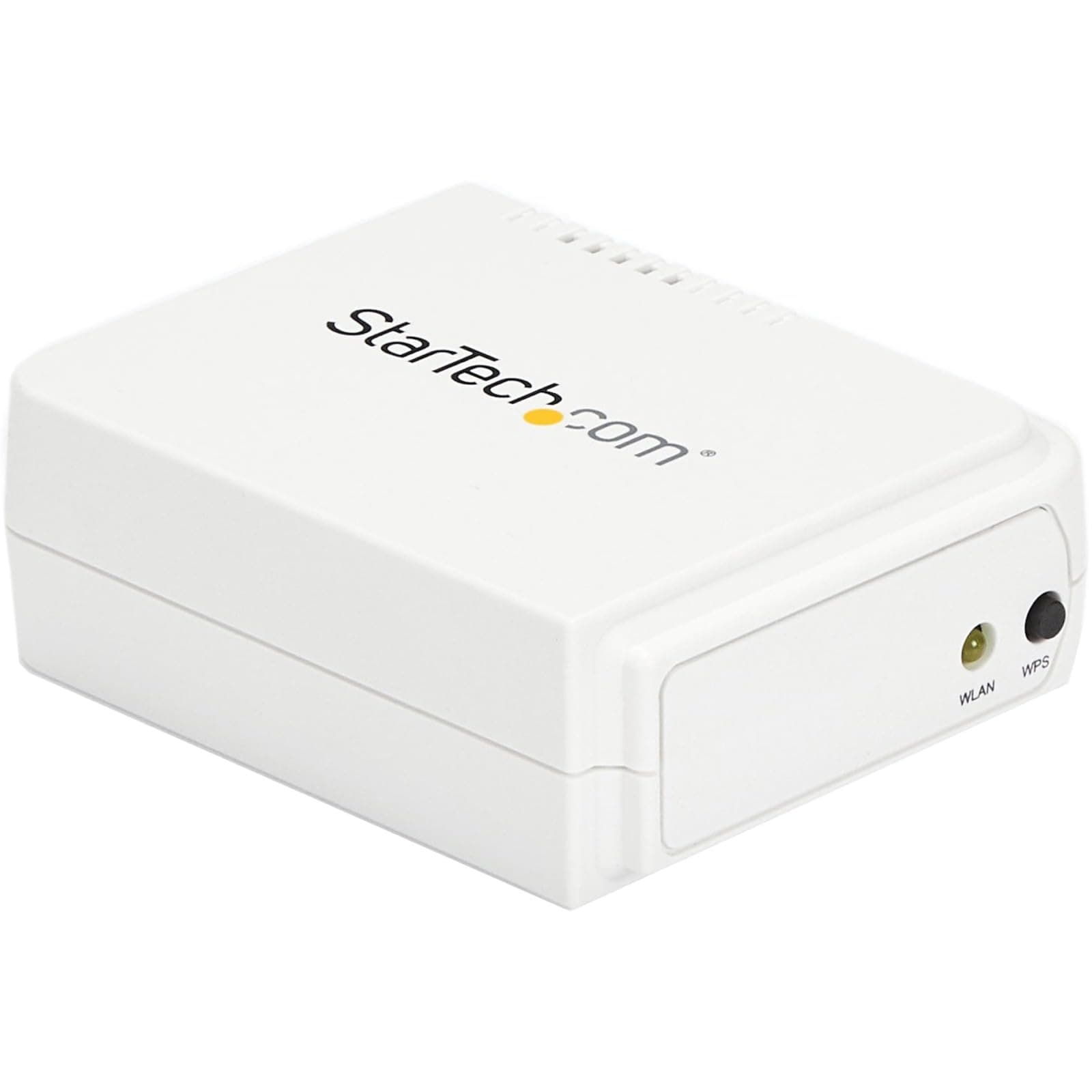
🖨️ Connect, Share, Print — Stay Ahead in the Networked Office Game!
The StarTech.com PM1115UW is a compact wireless N USB 2.0 print server that enables multiple users to share a USB printer over WiFi (802.11b/g/n) or wired Ethernet (10/100 Mbps). Compatible with Windows and Mac, it supports SNMP for remote management and comes with a 2-year warranty plus lifetime 24/5 technical support. Designed for small offices and home environments, it offers flexible connectivity options but requires a hands-on setup approach favored by IT professionals.












| ASIN | B00M77UME8 |
| Best Sellers Rank | #1 in Computer Networking Print Servers |
| Brand | StarTech.com |
| Built-In Media | 1xPower Adapter,1xSoftware CD,1xQuick Install Guide |
| Color | White |
| Compatible Devices | Desktop |
| Compatible Operating System Family | Windows |
| Customer Reviews | 3.2 3.2 out of 5 stars (565) |
| Data Link Protocol | IEEE 802.3 |
| Data Transfer Rate | 0.15 Gigabits Per Second |
| External Testing Certification | CE, FCC |
| Global Trade Identification Number | 00065030855167 |
| Hardware Interface | Ethernet, USB |
| Item Dimensions L x W x H | 2.8"L x 2.3"W x 1"H |
| Item Type Name | Wireless Print Server |
| Item Weight | 0.11 Pounds |
| Manufacturer | StarTech.com |
| Mfr Part Number | PM1115UW |
| Model Number | PM1115UW |
| UPC | 065030855167 650308551676 |
| Unit Count | 1.0 Count |
| Warranty Description | 2 Year |
L**.
GREAT Device! GOOD Support, just NOT very plug and play!
The most important thing to know is that StarTech is a good company, based in Ontario, Canada. And, if you're having trouble, if you call StarTech they can remote into your computer and help you with setup. Knowing that this was a good company based in Canada, I decided to give this a shot. I saw someone had returned it to Amazon, and I was pretty sure that that was because it was too difficult for them to set up. As it turned out, It was pretty difficult to set this up, and it is definitely NOT plug and play! I tried their software method to set this up, and that did not work to fully set up the device. Their software was also only seeing this device if it was connected to the computer via Ethernet. Another thing I ran into is because this was a used product, I had to hit the tiny reset button (with a paperclip in a tiny hole) on the side of the device that says "reset" next to it. The black button on the back of the device is actually for WPS setup, which I have not tried and I don't know if that would work or not, but that button on the back is NOT the reset button! So for me, I had to connect the device directly to the laptop with an Ethernet cable and set it up initially with the wired cable. Set up absolutely would not work using WIFI. I had to set the Ethernet settings to 192.168.1.50 and access the GUI interface at 192.168.1.10 . For me that was the only way to get this thing going, so I had to set up the device in the GUI interface. StarTech support was very helpful in showing me how to configure that. After the device is properly set up in the GUI then you have to manually configure a new printer driver for the printer in Windows to work specifically with this device and you have to follow the instructions in the StarTech manual. I'm using Windows 11 Dell laptops and a Brother HL-L2320D laser printer. It's a good device and they have very good phone support. it's just not a plug-in play device! This was a struggle. At one point, I broke the regular driver so I couldn't plug the printer directly into my laptop with the USB cable, but I ended up fixing that and I ended up fixing this device so it works great now. One of the problems was in the GUI. You have to stay on the tab that you're setting up. You can't go from tab to tab and then hit save. You have to save the settings in the tab that you're currently in, or you lose all the settings you just put in there! So, It was a real struggle, but the support was great and the device is clearly a stable and good device. It's just very difficult to set up! The other interesting thing was I set this to a static address of 192.168.1.200 and I can now reach the GUI at that address, however, for some reason if I log onto my router and look for this device as a connected client, it is completely missing from my router. I cannot find it displayed there as a client, yet it is working perfectly! I recommend the device! So I hope this helps someone!
A**A
Welcome to the 90's!
Welcome to 1998. - Very poor functionality. - Dated 20 year old interface that makes set-up a slog. - Likely same internal hardware since the 1990's. - WiFi Configuration takes you back in time - to a place you don't want to return to. - Configuring without a Windows machine is a nightmare. - Will it even work with Windows 11? (I don't know, I gave up on Windows when Vista came out). - Be sure to reset with the reset button when you return it. If you set-up print servers in the 1990's, this will be familiar and as needlessly frustrating as it was back then. Setting up requires a lot of unnecessary steps and configuration via their archaic 1990's interface. Oh and not to mention multiple device restarts along the way. In my case, the wireless connection would not work no matter what I tried. After spending 1.5 hours trying to convince it to work, I decided enough was enough. StarTech - I know this device in one form or another has been a contributor to your bottom line for a long, long time. At some point refusing to modernize and update your hardware will impact your sales.
R**M
Works well, but requires expert installation
I purchased this because it is the only compact, affordable print server I could find. I wanted to be able to use my old HP LaserJet 1320 printer on the other side of my home office from my Windows 10 PC, without running a long cable around the room. This unit does the trick! WARNING: installing this is not an easy task and not for the non-expert. I am a trained network tech (CompTIA Net+), so I got to work. Other reviewers panned the included software, but it worked for me, and said the book was useless, but it has some good information. I started by reading everything I could find: reviews, book, online FAQs, etc. I then took the precaution of documenting all the settings in my router, so I could easily get back if needed. The key is to understand that nothing on the network will communicate unless its IP address is in the same range as the router, and the subnet mask is the same. For me, the router IP is 192.168.50.1, subnet 255.255.255.0, while the print server comes setup with IP 192.168.0.10, subnet 255.255.255.0. One reviewer said the setup was easy, but probably had a router IP of 192.168.0.1. The instructions suggest connecting a PC directly to the server to change the server setups, but I used a different technique: I changed my router IP to 192.168.0.1 so it could communicate with the server! After doing that there was good wireless connectivity and I could access the web setups for the server from my PC browser by entering 192.168.0.10. I found the server was already setup for infrastructure mode (contrary to some documentation), which is needed for a router-based home network. It was also setup for a fixed IP address, which I found necessary. From my PC I changed the fixed IP to 192.168.50.100, which fit better into my network structure, then instructed my router to reserve that address for the server. While setting up the server, I also added a password. (Of course, I put my router IP back to the original address, so it could talk with the reconfigured server.) Along the way I used "ping" to verify that the server was accessible from the router and the PC. At this point I tried setting up a printer port using instructions I had, but could not get the server driver to install from the supplied disk. Instead I put in the software disk and followed the prompts for a complete installation. It installed on my PC OK, and it was relatively easy from there to complete the installation and print a test page. One advantage I had was the printer being installed had already been used on my PC, so the correct printer driver was already installed. My suggestion would be to first get the printer working while wired to the PC, prior to trying to use it with the server. Bottom line here is this is not a novice installation. If you don't have some networking experience or don't want to try working with tech support, you should look at another solution, such as purchasing a wifi-enabled printer. I am giving this a 4-star rating since I needed and like this solution.
S**9
Overall ok.
N**N
Installation is a little bit confusing. Once installed, it's pretty easy to use it with different PC. The price probably is enough to buy another small laser printer. But i don't want to get rid of my old HP laserjet.
S**N
A pesar de que el servidor está arriba y puedo acceder desde el navegador, el 90% de las veces no imprime lo que hay en la cola de impresión, y tengo que reiniciarlo una y otra vez. Esto desde Windows, desde Mac ni siquiera imprime los trabajos enviados. Cabe destacar que el servidor lo tengo conectado por cable, ni siquiera por WiFi.
D**N
Used this device to print wireless to Brother USB printer. Now that it is setup it has been working great. No issues printing. When setting up I could not get the wireless printer to setup with Windows 10, I did get it to work by connecting directly to PC by ethernet cable. Instruction provided were not exact but close enough to figure out. As long as someone has modest computer knowledge I would recommend this product.
C**E
Es muy difícil de configurar si no estás familiarizados con seteo de redes. Yo lo estoy y aún así me costó un par de intentos. Parece funcionar muy bien, sólo es un poco lento.
Trustpilot
1 day ago
5 days ago