We remain fully operational. Our teams are working around the clock to ensure your deliveries continue safely.

Descargar la aplicación


Servicios al cliente
Sobre nosotros
Copyright © 2025 Desertcart Holdings Limited
Descargar la aplicación
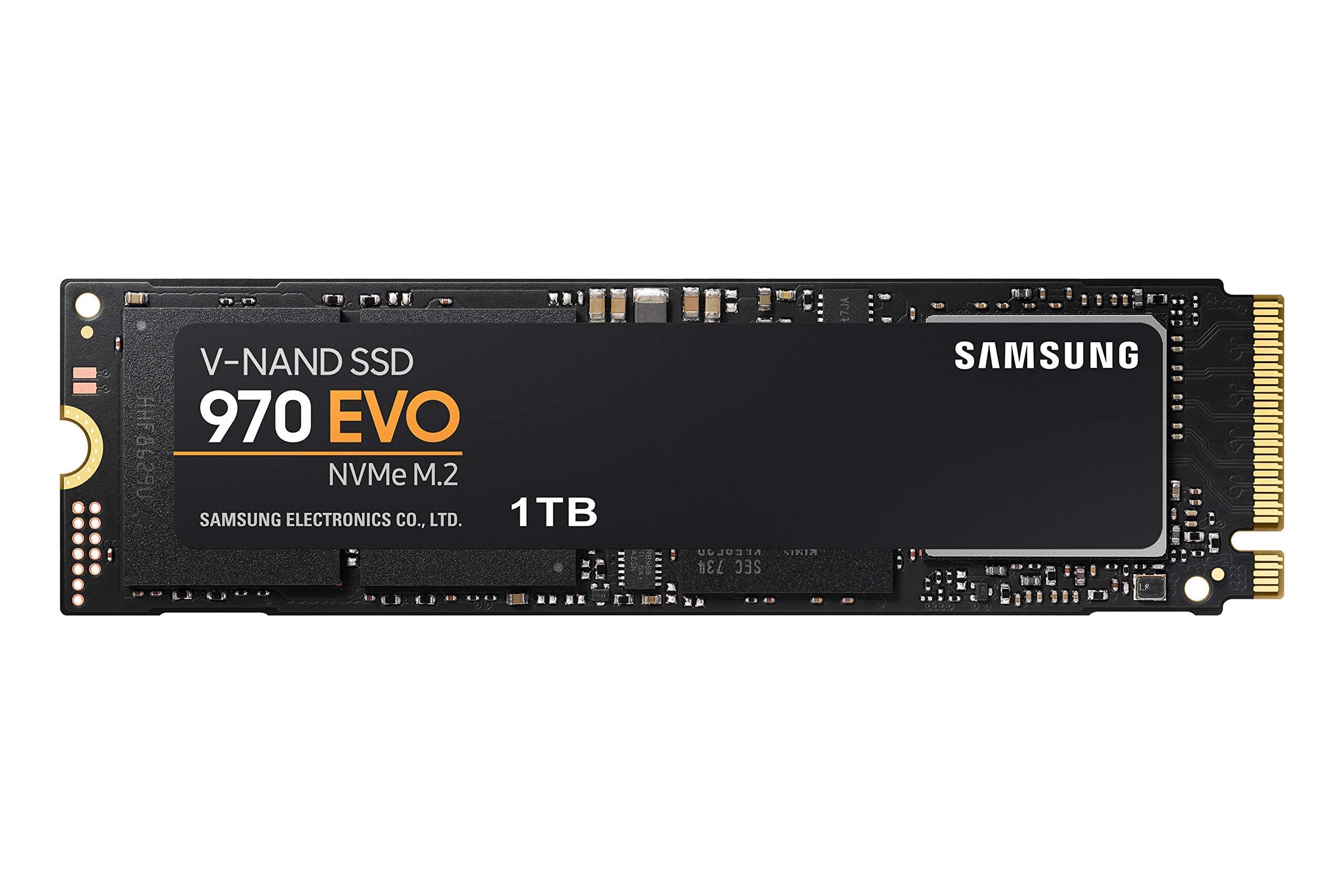




🚀 Upgrade your speed, secure your creativity, and never miss a beat!
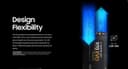
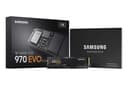
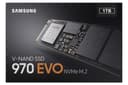
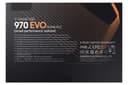
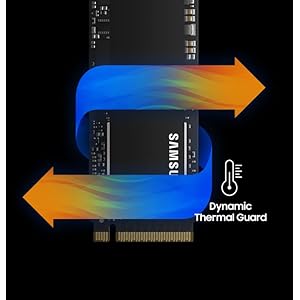
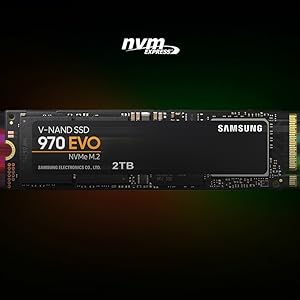
The Samsung 970 EVO 1TB M.2 NVMe SSD delivers industry-leading read/write speeds up to 3,500/2,500MB/s powered by cutting-edge V-NAND technology. Designed for gamers, content creators, and professionals, it features advanced thermal control, AES 256-bit encryption, and a 5-year warranty. Plus, enjoy a 2-month Adobe Creative Cloud Photography subscription to jumpstart your creative workflow.






| ASIN | B07BN217QG |
| Additional Features | Alcohol-Free |
| Best Sellers Rank | #194 in Internal Solid State Drives |
| Brand | Samsung |
| Built-In Media | Instruction Manual, Solid State Drive |
| Cache Memory Installed Size | 1 |
| Color | Black/Red |
| Compatible Devices | This drive is compatible with servers and arrays that accept M.2 2280 PCIe drives |
| Connectivity Technology | NVMe |
| Customer Reviews | 4.9 4.9 out of 5 stars (37,554) |
| Data Transfer Rate | 550 Megabits Per Second |
| Digital Storage Capacity | 1 TB |
| Enclosure Material | Nand |
| Form Factor | M.2 |
| Global Trade Identification Number | 00887276261898 |
| Hard Disk Description | Solid State Hard Drive |
| Hard Disk Form Factor | 3.5 Inches |
| Hard Disk Interface | NVMe |
| Hard Disk Rotational Speed | 3500 |
| Hard-Drive Size | 1 TB |
| Hardware Connectivity | Solid State Drive |
| Installation Type | Internal Hard Drive |
| Item Dimensions L x W x Thickness | 3.15"L x 0.87"W x 0.09"Th |
| Item Type Name | Samsung 970 EVO Series - 1TB PCIe NVMe - M.2 Internal SSD (MZ-V7E1T0BW) |
| Item Weight | 1.92 ounces |
| Manufacturer | Samsung Electronics DAV |
| Media Speed | 2500 megabits_per_second |
| Model Name | 970 EVO |
| Model Number | MZ-V7E1T0BW |
| Number of Items | 1 |
| Read Speed | 3400 Megabytes Per Second |
| Specific Uses For Product | personal, gaming, business |
| UPC | 887276261898 |
| Unit Count | 2.2 Pounds |
| Warranty Description | 5-Year Limited Warranty |
T**R
Great! Fast!
Figured I'd write a review to maybe help someone. I bought two 1Tb versions of these, had some buyer's remorse, and was really worried about compatibility. The whole 2 lane PCIE 3.0 vs. 4 lane PCIE 3.0 had me spooked in terms of system stability and performance/cost. My first system, a Dell Optiplex 5070, I am so happy to report, is lightning fast with this SDD. The 3060 and 5060's have been reported to have only 2 lane support and Dell's documentation is useless - but user complaints of less than optimal performance on NVME M.2 SDD's are everywhere. Well, Dell must've updated that system because CrystalDiskMark shows the 3,000 MB/s+ of a four lane system. I used the Samsung Data Migration tool to image the OS from Dell included 500GB 7200RPM have drive no problem. But I also have a Dell 7480 (i5) laptop. I just bought it new- the price was good and I needed a compact laptop to carry around. There was no question it is 2 Lane - being older, I didn't even have to guess. So the quandary was, would the Samsung 970 EVO be backward compatible, stable, and the speed worth the additional $70 over a Crucial SATA SDD? The system came with a 128GB SATA M.2 SSD. First of all, transferring the image was pretty hard - and I'm very familiar with imaging hard drives. Many Dell laptops will not see this SSD until the BIOS settings are changed from RAID to AHCI. This is first and foremost otherwise this SDD won't be seen. I've seen this reported with many motherboards. Second, I have a USB to M.2 NVME and a USB to M.2 SATA adapter. (There's only one SSD slot in the laptop so no choice...) Even with the Samsung installed directly in the laptop, the SSD firmware updated, and the Samsung SSD driver installed, Samsung Data Migration will not recognize this drive. I suspect it's the 2-lane thing. And it definitely will not see it in the USB adapter because it see's the adapter controller, not the SSD's. In a nutshell, I resorted to mounting both SDD's in those USB adapters, and plugging them in my Optiplex (another computer), one then the other. I first took and image or the original Dell SATA using Macrium Reflect. Then I plugged in the Samsung and restored the image. This takes some knowledge of Macrium (and a little math) to resize the C: (OS) partition to the new drive. Using a separate computer is the only way I could get this to work. But it worked perfectly. And I transferred all partitions no problem, expanding C: at the same time. As far as it being worth it, I'm getting 1,500 MB/s on the laptop 2 lane. This is still 3X the speed of an M.2 SATA SSD. So Yes! In a nutshell, don't count on the Samsung Data Migration tool. Do load the Samsung SSD driver from their website and install it. Do look in your BIOS to change RAID to AHCI if the computer doesn't see the new SSD in the NVME slot. Macrium Reflect is free and works most of the time. And it is compatible with 2 Lane PCIE 3.0 - if you see 1,500 MB/s Read speeds, that's why.
T**O
Nice Improvement
The drive works very well and is much faster than the hard disk I was using. Everything about my system seems faster since installing this drive. I've heard you should keep 25 percent of an SSD/NVME drive empty for best performance and lifespan so keep that in mind when determining what capacity drive you want. It is not designed to have a heat sink installed. Some info for people who have no experience with NVME type drive setup/install in place of your C drive aka windows 10 boot disk. 1. this drive does not come with the screw to hold it in place. It is a very tiny screw and they can be different for every brand of computer so make sure you find a screw to fit that NVME standoff on your motherboard. My HP Pavilion is 3 years old and has no screw in the hole so I got one from a friend with an extra on his board. If you don't have one you may have to order an NVME screw kit. 2. There are 3 or 4 different downloads you need to do from the Samsung website. A. Samsung Magician app - info and diagnostics for the new drive and very basic info on all drives in system. B. Samsung Data Migration app - use to clone your C drive (Windows 10 boot drive) so you can boot off the new SSD drive. You most likely want this because it will greatly speed up most everything you do. The cloning is simple but do not do it until you have installed the latest firmware and replace the windows 10 default NVME driver with the Samsung one. C. firmware update that would be installed to the new drive - my EVO 970 had the latest firmware and did not need this. D. Windows Driver - you need this and Samsung wants you to install it before doing any operations on the drive. So you would 1. make sure you have the screw to hold the NVME drive in place. 2. physically install the drive 3. start up your computer and press X and Windows key and select Disk Management. You should see the new drive as unallocated space - initialize it as GPT (not MBR). You can format as NTFS also if you want - I did but I think the clone software might do all that anyway. Now install the Samsung driver, magician and data migration apps and also update your drive's firmware if needed. Restart and go into the Magician software and to the second window - I think its drive properties or similar and it should list the Samsung NVME driver is in use - good to verify. Next go into the data migration and clone your old hard disk onto the new drive - how long it takes depends on how much space you have used. Mine took about half an hour or so for about 200 GB. Once that is done then you want to shut down, go into your computer and physically unplug the data cable from you old hard disk. Turn the computer on and go into the bios setup and ensure the boot order shows you new NVME as number one. Now your PC should load windows from the new M.2 NVME drive. Note: Because one is a clone, now your new drive and old one have the same ID. Not good. If both drives are plugged in it will boot from the old hdd regardless of bios settings. Fix this by: 1. Shut down and connect the data cable back to your old HDD. Boot up - it will boot from hdd, not m.2. Use X + windows key to run command prompt as administrator. type: diskpart then type: list disk - identify your new drives number and type: select (space) the drive number then type: online then type: uniqueid then type: exit. Reboot, go into bios, disable boot security and enable legacy boot. Make sure the M.2 is the first in the boot order. That should be all you need to do to keep your old drive and boot from the new one. You can delete everything off your old hard disk if you want but you don't have to - you can leave it as a bootable windows disk. That's what I did. For anyone with an HP Pavilion 570-P0x0 from 2017 or later with Lubin motherboard I can tell you that this drive will work for you. Also, I did not have to update my computer bios for this to work. BTW - this drive is about 20 times faster than the drive it replaced. Apps now pop onto the screen almost instantly, even web pages seem to load a lot faster.
S**E
inserito all'interno di un DELL precision 7530 ,funziona regolarmente
N**R
This is definitely a product to purchase if you are looking for a quick, easy and cheaper upgrade of your laptop. I have a MacBook Air early 2015 with 128GB SSD storage. I was looking to trade in for a newer Mac when I stumbled upon this product. Product was delivered on time, and it was very easy to change the existing SSD to this new one. It has been over 6 months now and my laptop works just fine, with both Windows and Mac running smooth.
L**E
What you see is what you get. Performance wise is speechless.
H**M
I like it use it to upgrade my ssd hard drive in my laptop
A**V
Hi Everyone, This review will solve most of your doubts (If not all) regarding SSD and how to install it and DIY in the home without anyone's help. This is the best NVME SSD available in the market and if you have the money to spend on the SSD then go for it. It is the best. Now talking about compatibility yes it is compatible with all laptops which are having M.2 NVME slot and having M keying. M keying means it will be having a single notch on the PCI-E slot as well as on the SSD. For this review and youtube video, I am using the Asus FX553VD laptop which is beast and have the best configuration available in the market. So talking about compatibility it is compatible with all modern laptop having M.2 PCI Express slot and the popular Laptop list is below. Well if you want you can even clone your older windows onto this SSD without losing anything ( every program and setting will work same as it was on the older HDD ) using Samsung Data Migration software which is free and It will work flawlessly, although if possible go for a clean install as it will improve system performance. You can still use your previous HDD without any doubt as a normal storage and this SSD is very well detected in bios so no issue on that. Also talking about boot time it has reduced to one - third than my previous 7200 rpm hard disk which took around 16 seconds to boot. Apart from that major changes, you will see when you open browsers like chrome and Mozilla which will open instantly and also if you are doing editing stuff then opening time of Programs like Premiere Pro, Lightroom, Photoshop, After effects take very less time and work very well. The rendering time is really awesome earlier for a 5-minute full HD video was taking around 30 to 40 minutes which has been reduced to 5- 10 minutes which is a huge improvement and I really love that. So if you really want blazing fast speed then this SSD is for you and is worth for every paise you spent. Also, the benchmark test results can be found in photos.
Trustpilot
Hace 1 mes
Hace 1 día