We remain fully operational. Our teams are working around the clock to ensure your deliveries continue safely.

Descargar la aplicación


Servicios al cliente
Sobre nosotros
Copyright © 2025 Desertcart Holdings Limited
Descargar la aplicación
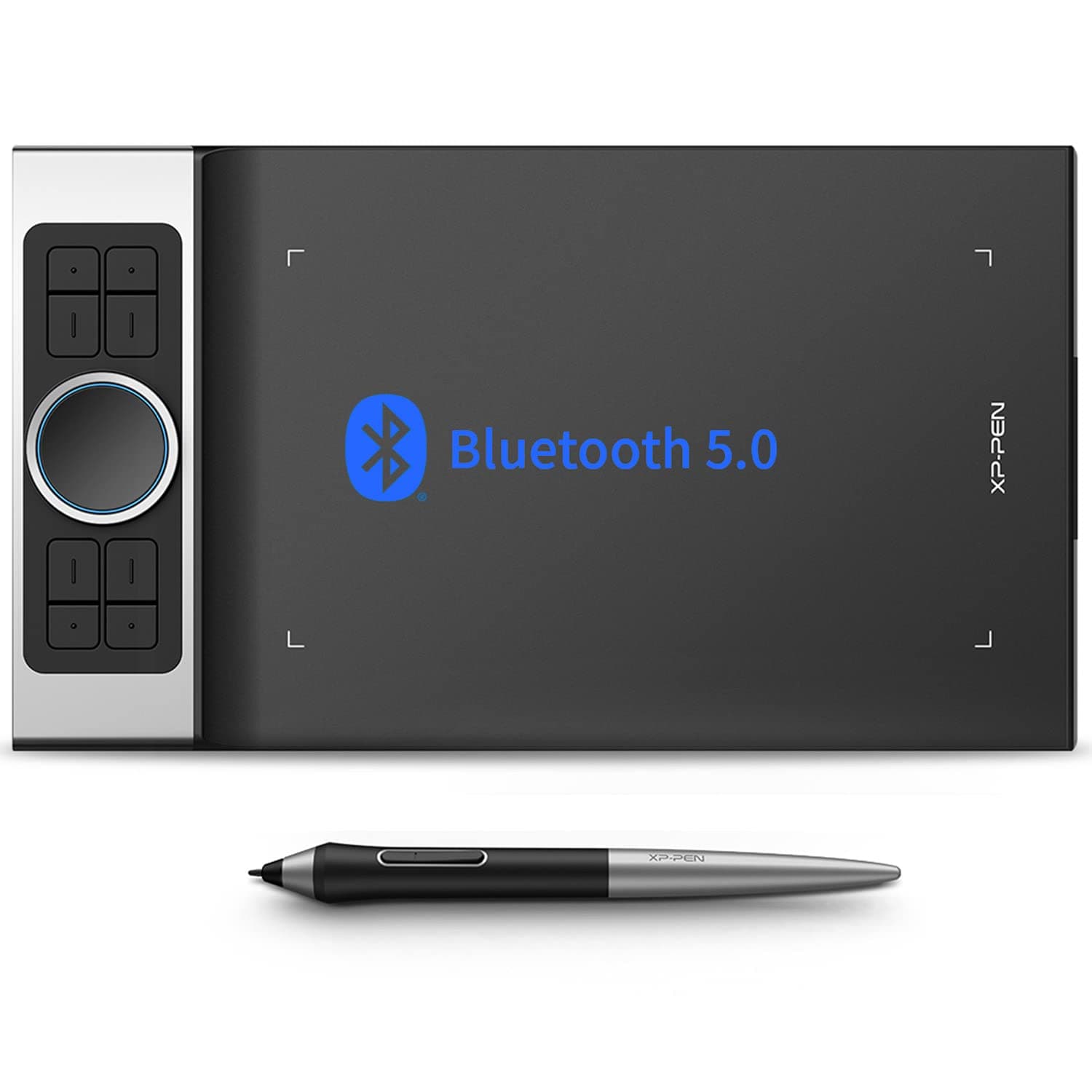
🎨 Elevate your craft with precision and freedom — don’t just create, dominate your digital canvas!
The XPPen Deco Pro MW is an 11-inch wireless drawing tablet featuring Bluetooth 5.0 connectivity, 8192 levels of pen pressure sensitivity with tilt support, and dual customizable dial wheels. Designed for professionals and creatives, it offers 8 programmable shortcut keys, a slim 7mm profile, and broad OS compatibility including Windows, Mac, Android, Linux, and Chrome OS. Its long-lasting battery and versatile connectivity options make it ideal for seamless remote work, digital art, and design workflows.



| ASIN | B098NBL22P |
| Active Surface Area | 11x6 square inches |
| Additional Features | Durable |
| Best Sellers Rank | #222 in Computer Graphics Tablets |
| Brand | XP-Pen |
| Built-In Media | Digital Pen |
| Color | Balck |
| Compatible Devices | Desktop |
| Connectivity Technology | Bluetooth, USB |
| Customer Reviews | 4.4 out of 5 stars 331 Reviews |
| Item Dimensions L x W | 8.93"L x 15.73"W |
| Manufacturer | XP-PEN |
| Model Name | Deco Pro MW |
| Model Number | Deco Pro MW-[unique-identifier] |
| Native Resolution | 1024x600 |
| Operating System | Windows, Android, Linux, Chrome OS, Mac |
| Pressure Sensitivity | 8192 Levels |
| Screen Size | 7 Inches |
| Special Feature | Durable |
| Specific Uses For Product | Animation |
| Target Audience | Teacher |
S**.
Love this tablet
I recently had developed some intense wrist pain from using a mouse all day for my job. This is a great substitution for daily mouse use with my PC. For reference I am an architect and do not recall having seen any reviews form a similar profession (i.e. not strictly reviewed geared for more artist use). It did take a little to get used to the hover with the pen (when you make contact it “clicks” or draws depending on mode). My transition to using no traditional mouse at all took about a month and I don’t miss it. I frequently need to do drawing markups and it is much easier to do with a writing feature like this in Bluebeam - Especially if I have to sketch a building detail or something. In the past I’d have to either do this with program tools, or hand draw/scan/clean up scan, and then attach/insert it into the markup drawing pdf. God forbid I wanted it to a scale… With working remote due to covid it became less feasible to do my redline markups by hand on print copies due to not having a large format scanner at home and this is a nice compromise. It’s also nice to get that hand drawn quality for schematic drawings by using photoshop (or whatever other program combination), without having to scan and photoshop it clean before continuing or having to use a hard-line drafting program - which has a totally different feel to a client at that stage. I also like that the scroll wheel center (black circle) is a touch pad of sorts when in that mode. It is not terribly accurate, but it’s good enough that when I am working on paper copies but need to move the mouse to select something I can keep writing with my left hand and use my right hand to mouse over with this touch function without picking up the stylus pen. (Being ambidextrous is the best by the way, if you can train yourself to write with your dominant hand and use the stylus with either hand as needed to multi task work as needed.) Additionally, as an architect I have to draft in AutoCAD and Revit and this seems to do a good job as a mouse replacement for that. Slightly jumpier than a traditional mouse, but there are easy shortcut workarounds. It is imperative to have the scroll/zoom function for all these programs (as I found out the hard way with a starter tablet that did not have it) and this tablet delivers. I combine that scroll/zoom wheel with my main pen button set to middle click for a ‘pan’ function in many programs. It’s easy to use the pen with my dominant hand and scroll/zoom/shortcut key with my non dominant hand once I got the hang of it. The shortcut keys are easy to program and the interface program is easy to understand. I like that you can program different shortcuts for different programs. You can also switch between ink and mouse modes. Mouse mode works - you guessed it - like a mouse. Where you can move at variable speed across the screen and pick up the pen and move it but it doesn’t relocate on the screen like in ink mode. Ink is more of a screen to screen exact location. In ink mode you can hand-write in all kinds of different programs. Like draw in word documents, or written notes to text in outlook emails (if your writing is legible.. mine is not great). Additionally, I typically use three screens - a laptop and two externals for my line of work. In mouse mode you can set the full 3 screens to one mouse control area and the ‘mouse’ can traverse the whole area continuously. I also have a shortcut key set to switch monitor so when in ink mode I can click through and have it draw on one screen at a time (you can set it across all - but it becomes quite distorted since the ratios are skewed from tablet to 3screen stretch). As for the unit itself, it feels well made. Heavy enough to feel substantial but not enough to be obnoxious. It was relatively intuitive to download drivers and set up. The pen stylus has two buttons, a nice weight, and comes with several replacement nibs. The travel pen container is nice as well and the cap acts as a pen stand when not using the stylus. I like the option to be plugged in, work wirelessly via usb dongle, or connect wirelessly via Bluetooth. Battery life seems good (unit is not old so I will have to wait and see). For taking between home and office I was able to get a standard padded laptop protector sleeve that fit this nicely with a pocket for all the accessories (cord, pen case, manual, etc) and fits in my laptop bag with my computer. Overall pretty impressed with this for what I needed it for.
M**E
Almost perfect!
I really enjoy this tablet, I have many hours on it already. The build quality is very nice, the buttons feel good and so does the wheel and touch area. The drawing surface has nice friction, in fact initially I thought it might be too much. The pen is very comfortable to hold, very light, and the buttons are well positioned. I only have a couple real complaints, the wheel is a little too easy to move, sometimes I move it without even realizing. Also, the touch area only works as a digital wheel OR a mouse (think laptop touchpad). Regarding the touchpad, I would like to see a little more flexibility, being able to use all gestures together as well as resign shortcuts for things like swiping up would be nice. Anyway, even though I saw that as a major drawback initially I still find the tablet to be incredibly convenient, having a scroll wheel attached is a huge time saver. Edit: I forgot to mention the case that comes with the pen is quite sturdy and nice. It holds the pen very firmly, so firmly you could use it to make the pen easier to hold if you have troubles holding small items. And you might just have to use it in that case, because there is no good place to grip the pen to remove it. You have to grip it from the tapered tip and wiggle it around until it finally pops out. If I sound bitter, it's because I am. Anyway, not a dealbreaker by any stretch, but it is a painfully poorly thought out design. Actually, as I'm writing this and examining the case to be sure I didn't miss something, I'm starting to wonder if maybe there is supposed to be a spring at the bottom of the tube wasn't installed?
G**T
So it's great - when it's connected.
So, I got this tablet for myself a few months ago because I was impressed by the reviews with it and I'd been looking for a new, affordable tablet. And, for a couple months, it worked great. It's smooth as can be, the controls are super easy to adjust to, and it helped me get back to drawing! When it works, it's absolutely fantastic. However, I think a connection is damaged in it; it used to be just fine working with the Bluetooth receiver only for that to stop working at some point. I don't know if the battery is loose, if it's the receiver, or if it's where I plug in the USB cord, but my connection keeps dropping and I find myself having to press my free hand ( which would normally be using the button controls ) against my USB cable where it connects to the tablet in order to make my laptop recognize the connection between my tablet and my computer. But when it works, it's excellent! I've put it at four stars because, apart from this problem, it's honestly a fantastic tablet for such a great price. I want to see if I can get in touch with customer support to see if this can be repaired or not. If you're looking for a good tablet, I do recommend this one, but just be aware of the connection issues that might pop up.
H**D
Great protable tablet
This is my second one. First was purchased in 2022 and has been used practicaly daily. Finally a few chips in the drawing surface grew too aggravating and I replaced it. More than pleased with this product. I carry it to work and back daily and it is durable.
R**S
Better than Wacom PTH660 and Huion Q11K
I have an old Wacom PTK-840 (no longer supported by drivers = lame!). So I wanted to get the Wacom PTH660, but at 400 dollars, I instead went with the Huion Q11K. And then its side keys failed within 6 days of getting it. Maybe this was a fluke (ratings suggest it was), but I returned it and decided I would shell out for the Wacom PTH660. The thing was a piece of junk. So laggy when it would draw, but most of the time pen strokes wouldn't do anything. I tested it in Illustrator CS 5.5. Maybe Wacom doesn't support older Illustrator versions. So I returned it and got the XP-PEN Deco SW (small wireless) for 110 dollars. Loved it the moment I started using it. Just remember to click "OK" after configuring the buttons so it keeps your configuration. Love the dial. It is much better than the Wacom finger dial thingy. I've only had it about 10 days, but it is less laggy than the Huion Q11K (and a million times less laggy than the Wacom PTH660), and the dial and button and layout are much better than Huion Q11K and Wacom PTH660. It is a really great tablet, very lightweight, easy to use, great layout and interface. The driver/configuration software needs some improving, but it is easy to figure out and works (though sometimes it disconnects and reconnects the device without me unplugging it - hence why it is important that you click "OK" after configuring the buttons the way you want, which can be customized with your particular program). I have read that smaller is better in size (less strain on hands/wrist), but I think I would have gotten the Medium size, though the Small works fine - just have to get used to it after the huge PTK-840. I highly recommend the XP-PEN Deco SW over anything else out there in the small tablet category.
A**A
If you're an artist, use this
Great tablet for artists of all skill levels. Comes with a few adapters to accommodate for different platforms. I used it on lap and computer, and it worked well for both. Easy to use, too, and the manual will help you if you get lost somehow. The weight is good for the size, which is pretty lightweight for how large the pad is. Really recommend.
E**J
Great entry-level drawing tablet for a traditional medium artist
I purchased this as a gift for my SO who is artistically talented; but is accustomed to using canvas, paper and similar traditional mediums for their work (sketching, painting with watercolor/acrylics, oil and pastels). The medium size is BIG but in a good way, assuming you have the real-estate for it on your desk. Getting used to the way the input works quickly becomes second nature (by input I'm referring to pen movements on the tablet while looking at a computer screen rather than the tablet and your hands). The scroll wheel is really nice for adjustments on brush sizes and the inner portion of the wheel works as a trackpad. The buttons are helpful for productivity allowing quick changes after mapping desired specific in app/program functions or key combo bindings through the XP Pen software. I'd recommend getting the screen protectors available for it along with the sticker pack for placing on the tablets buttons; see photos for reference on the screen protector and tablet size for the medium. I wasn't sure which tablet to go with as there's so many available but I'm happy to report that they are enjoying it!
M**L
An insanely cheap, feature-packed and fantastic tablet but with a major flaw.
I really loved this tablet. I had been looking to upgrade from my aging Intuos 4 Small but couldn't let go of a touch/scroll wheel functionality, so this one was one of 3 options I had in mind. Ultimately, the highly customizable touch AND mechanical wheel are what sold me, alongside the number of programmable express keys. The tablet is extremely light and thin, with a nicely textured surface and a large active area, even for the small size. Texture is good, pen is lighter than Wacom's, and the software has been rapidly improving and catching up in recent years. However, this model is known for one major flaw: One which I was aware of when buying it, but hoped it was merely a case of a bad batch with manufacturing that had since been corrected. Unfortunately, mine came with the same problem, which I am now convinced is an inherent design flaw of this model. The pen requires a certain amount of force before any input is detected. Whereas my old Wacom can detect even the faintest touch, resulting in natural, uninterrupted strokes and falloffs, the Deco Pro won't register any input if the tip is in contact with the surface until more pressure is applied to it. As a result, drawing feels almost unnatural, light strokes repeatedly have gaps in them, and input will pretty much drop with light presses. I tried everything, from uninstalling old Wacom drivers to installing a tool that supports sent me to tweak the tablet's internal settings, yet nothing worked. Its worth noting that XP-Pen's customer support was top tier the entire time. They even offered to send a replacement pen to test, but with little time remaining before I depart on a trip, and having heard of others' issues remaining even across multiple pens, I decided to return the product and now have an Artist 12 Pro instead. It really does sadden me, as this tablet is otherwise a beast for its price and features. I loved the aesthetic of it too. I still highly recommend XP-Pen's products, just not this one. I dearly hope they can improve the machine's input capabilities in the future to match Wacom's.
Trustpilot
Hace 2 semanas
Hace 4 días