Some deliveries may take a little longer than usual due to regional shipping conditions.

Descargar la aplicación


Servicios al cliente
Sobre nosotros
Copyright © 2025 Desertcart Holdings Limited
Descargar la aplicación
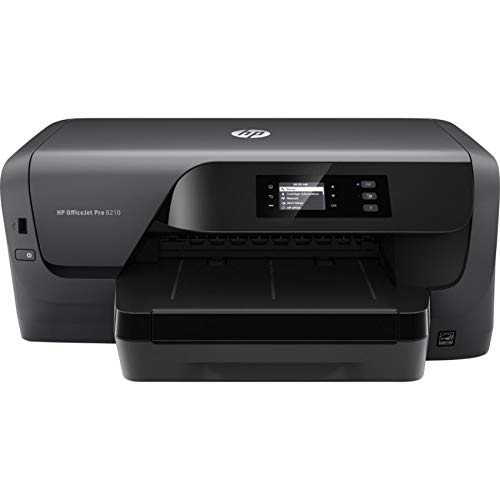
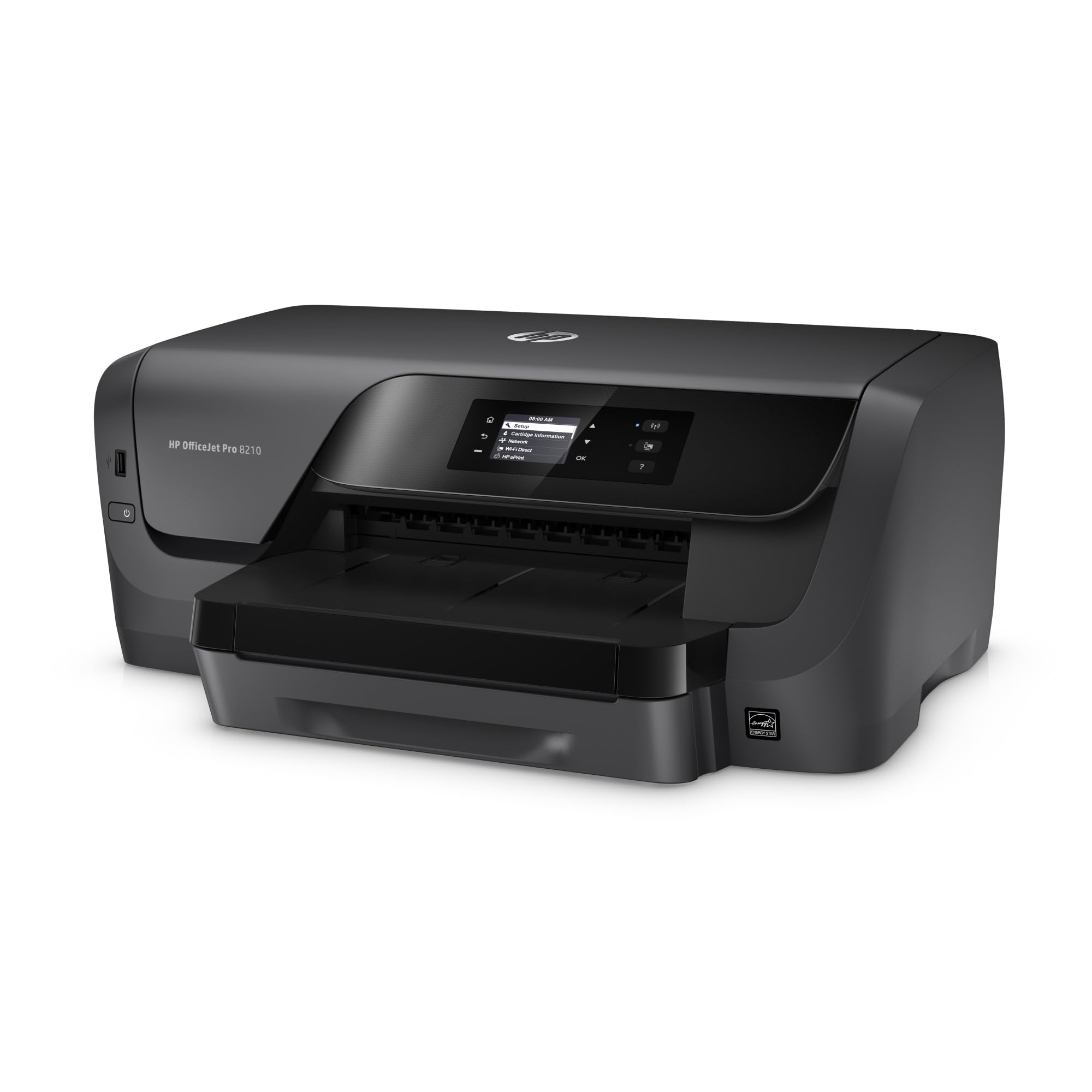
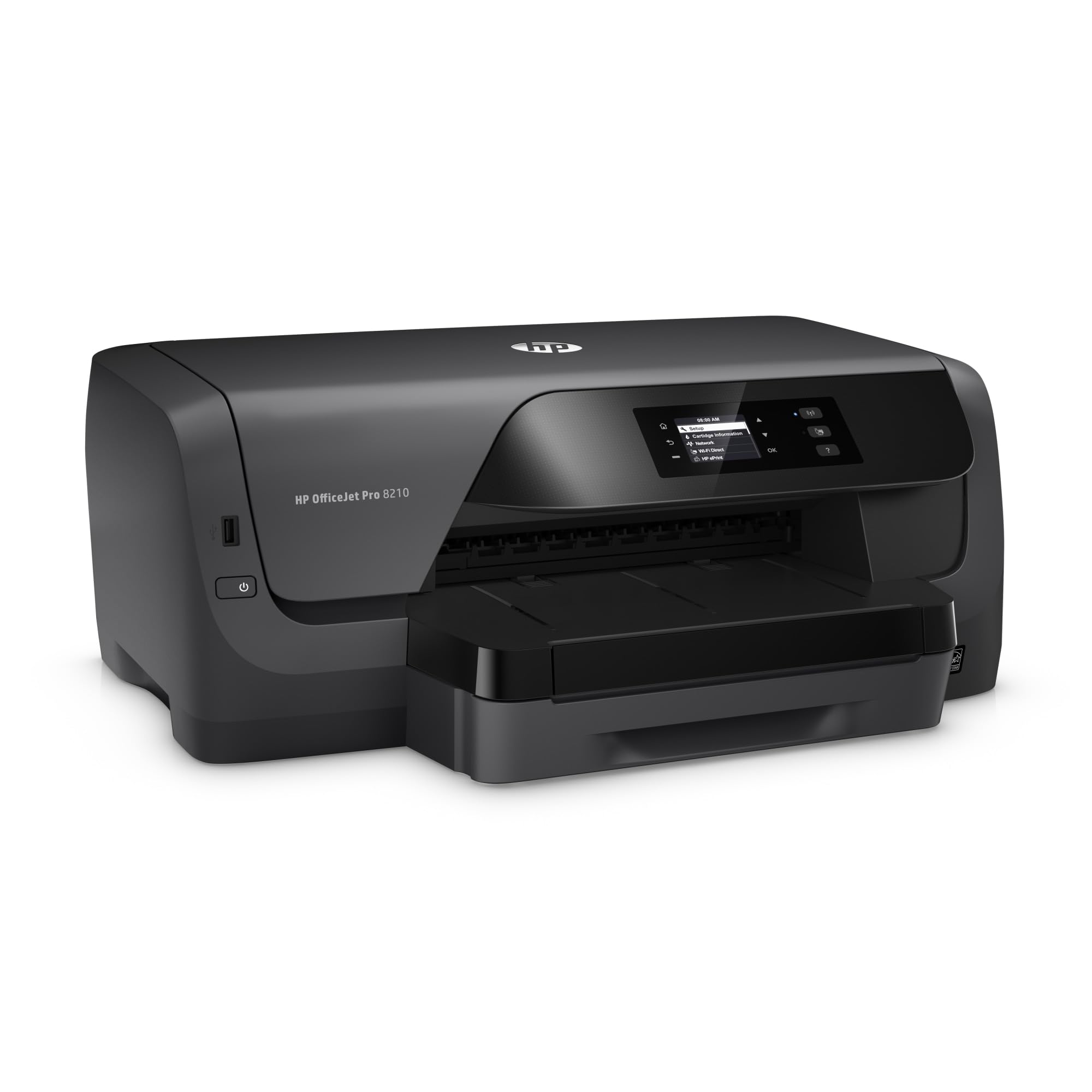
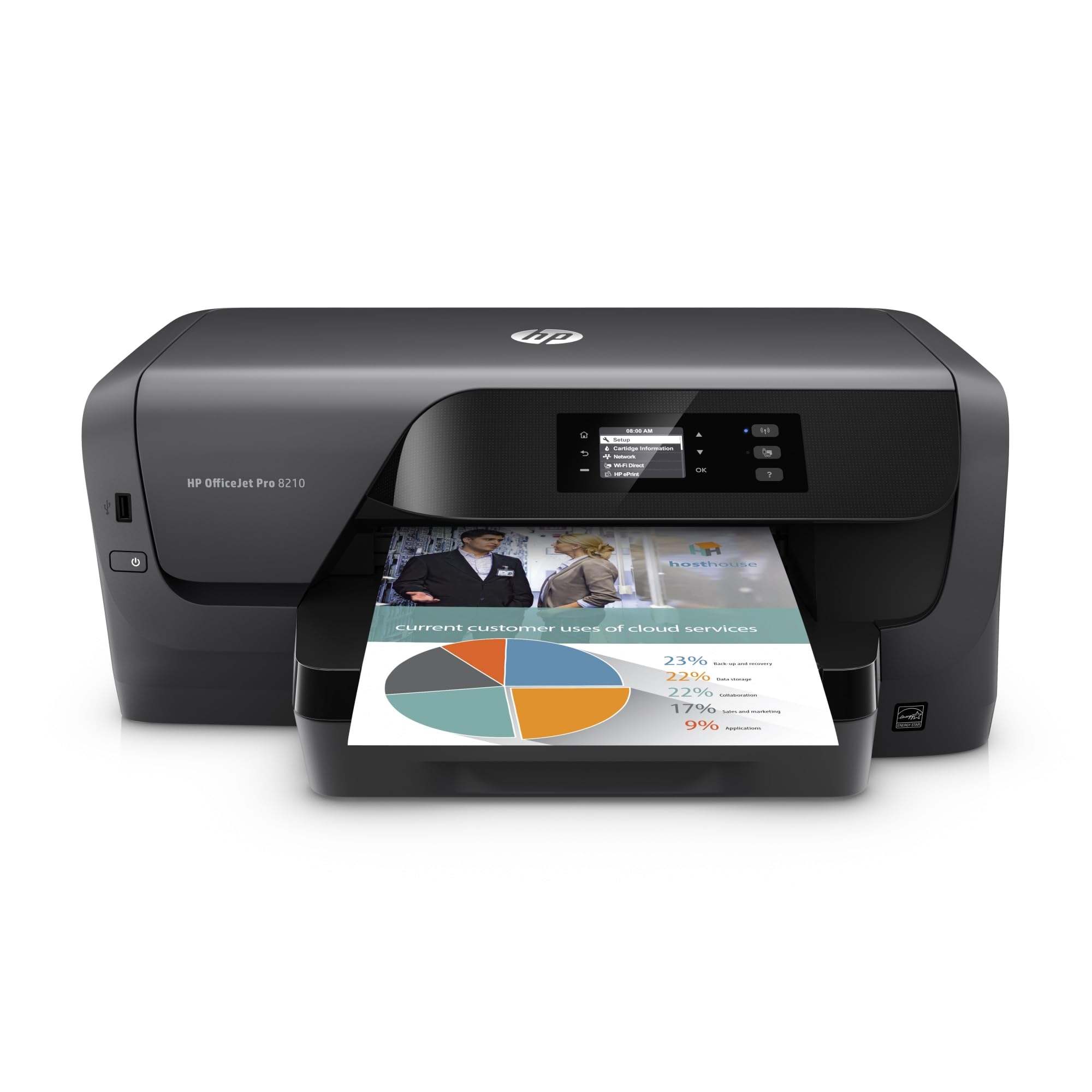

🖨️ Elevate your office game with smart, affordable, and effortless printing
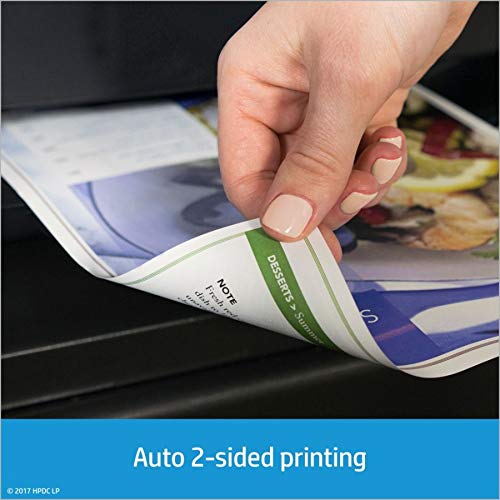
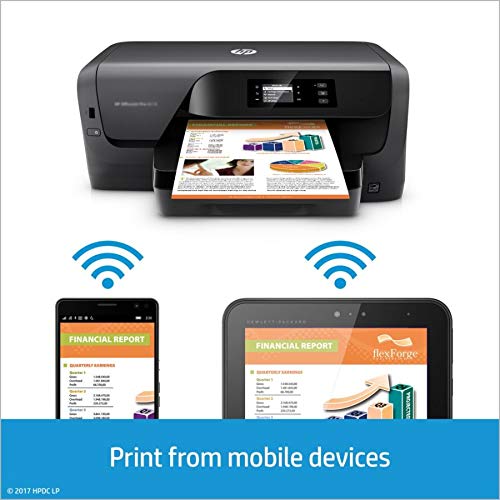
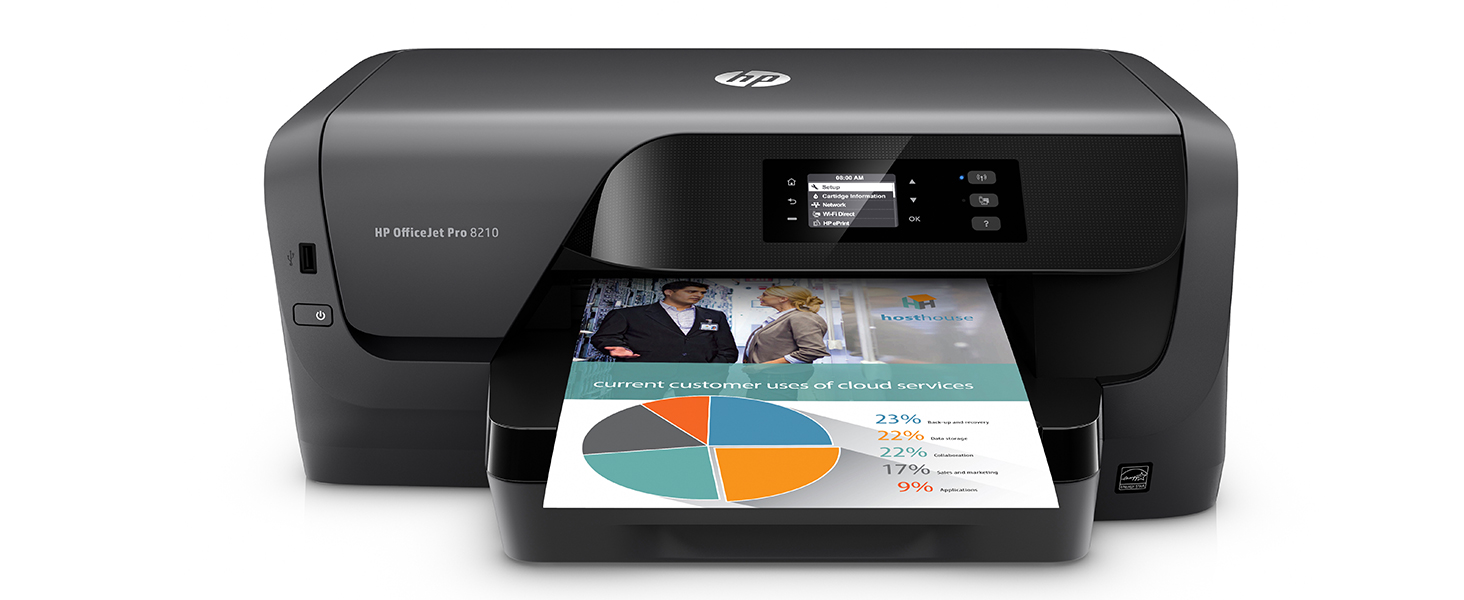
The HP OfficeJet Pro 8210 is a wireless color inkjet printer designed for small businesses and professionals seeking affordable, high-quality color prints. Featuring automatic duplex printing, built-in Wi-Fi Direct, and seamless mobile and voice control via the HP Smart app and Alexa, it streamlines workflows while cutting costs with Original HP 952XL high-yield cartridges. Its robust fleet management capabilities and broad media support make it a versatile, productivity-boosting centerpiece for any modern office.






| ASIN | B01HSADJIO |
| Additional Printer functions | Scan |
| Best Sellers Rank | #428,231 in Office Products ( See Top 100 in Office Products ) #352 in Inkjet Computer Printers |
| Compatible Devices | Windows 11; Windows 10; Windows 8.1; Windows 8; Windows 7; Linux; macOS 10.12 Sierra; Chrome OS |
| Control Method | Voice |
| Controller Type | Amazon Alexa, Vera |
| Customer Reviews | 4.0 4.0 out of 5 stars (2,481) |
| Date First Available | August 1, 2016 |
| Dual-sided printing | Yes |
| Duplex | Automatic |
| Global Trade Identification Number | 00889894411020 |
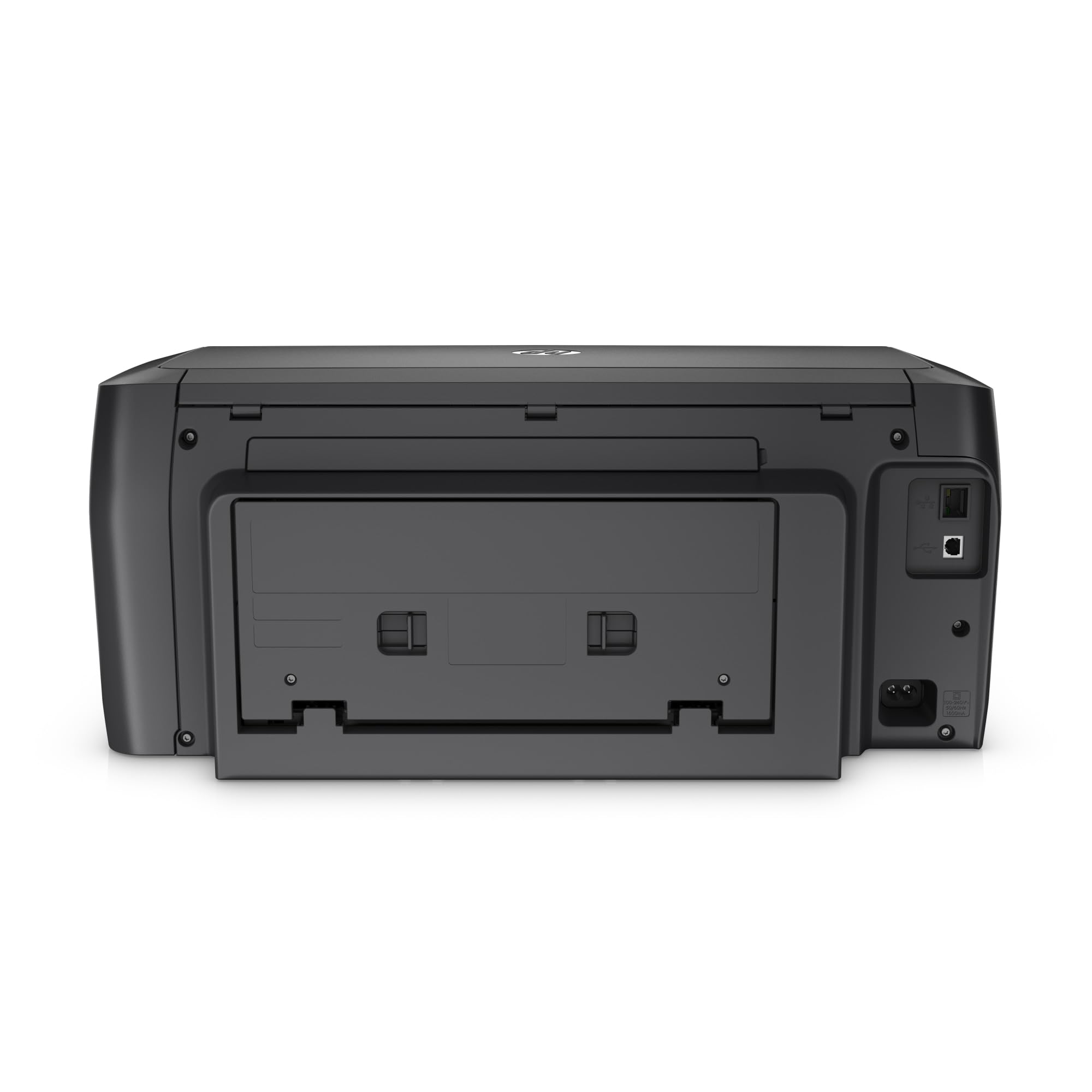
| Hardware Interface | Ethernet, USB 2.0 |
| Included Components | HP 952 Setup Cyan Instant Ink Ready Cartridge, HP 952 Setup Magenta Instant Ink Ready Cartridge, HP 952 Setup Setup Black Instant Ink Ready Cartridge, HP 952 Setup Yellow Instant Ink Ready Cartridge, HP OfficeJet Pro 8210 Printer |
| Ink Color | Color |
| Is Discontinued By Manufacturer | No |
| Item Weight | 18.96 pounds |
| Item model number | 8210 |
| Manufacturer | HP |
| Max Copy Speed (Black & White) | 22 ppm |
| Max Input Sheet Capacity | 250 |
| Max copy resolution black-white | 1200 dpi |
| Max copy resolution color | 4800 x 1200 dpi or higher |
| Maximum Black and White Print Resolution | 1200 dpi |
| Maximum Color Print Resolution | 600 x 600 dpi |
| Maximum Media Size | 8.5 x 14 inch |
| Maximum copies per run | 100 |
| Memory Storage Capacity | 256 MB |
| Model Series | OfficeJet Pro |
| Number of USB 2 Ports | 1 |
| Output sheet capacity | 150 |
| Print media | Card stock, Envelopes, Glossy photo paper, High-resolution paper, Labels |
| Printer Ink Type | Inkjet |
| Processor Count | 1 |
| Product Dimensions | 16.53"D x 19.52"W x 7.99"H |
| Scanner Type | Photo |
| Series Number | 8200 |
| Sheet Size | 3 x 5 to 8.5 x 14, Letter, Legal, Envelope Inches |
| Specific Uses For Product | Office |
| Total USB Ports | 1 |
| UPC | 889894411020 |
| Warranty Type | limited warranty |
| Wattage | 30 watts |
F**W
Good for double sided and pictures
We print some pictures using this. They aren't as good as getting them professionally printed, and we don't bother with using photo paper which might make them look better, but we like using it so that we can rotate pictures in our holders often. LOVE that it can print borderless to 8.5x11. We got 8.5x11 acrylic holders, and have pictures set up in them that we can rotate at will. It's a very nice set up. and the pictures are perfectly find at about 4 feet away. If you start getting in really close, you can see that they could be a little sharper, but the colors are quite good, and just using plain copy paper. I also love that this can do two sided printing on it's own. I use this feature all the time to save paper when one sided is not needed. Works very smoothly. The only thing that would be nice is if it had a built in scanner. However, I have yet to run into the time I needed a truly high res scan of something. Scanning using my phone normally works fine for anything I need. But if I really do need a perfect scan, I will have to look elsewhere. I wasn't willing to spend extra for that feature when I found this printer at a good price. Very happy with the purchase overall.
J**1
Had a DNS Error But It's an EZ Fix. Great Printer.
Setup it using windows 10 and works from Linux/Xubuntu 16.04 after setup. The only issue I had was a DNS error with web connect for the e-print/Instant-ink plan. I had to go to the Local Area Network(LAN) ip-address of the printer via web browser and change the DNS. How to correct the DNS Error. On the printer click "Home" / "Network" / "Wireless" / "View Network Details" to find the LAN ip-address. Open a web browser and type the LAN ip-address of the printer in the address bar. Click the "Network tab" / "Wireless 802.11" / "IPv4 Configuration" / "Manual IP" click "Suggest a Manual IP Address" Then tick "Manual DNS Server" and change the 1st DNS to "8.8.8.8" and the 2nd to "8.8.4.4" Or to whatever DNS you want to use. Click "Apply". Turn the print off and unplug and wait 30sec. Then turn it back on. On the front of the printer press the "ePrint" icon and chose "accept" and the print the "code" to finish the setup on the HP web site. --------------------------- The printer is a bit bulky but looks very nice and the prints are good quality. The printer does print in rather heavy ink. The cheap 20lb paper I had on hand was a bit too wet after printing very colorful prints and smudged easily. I bought some 24lb paper and it works better but still a bit wet. I see that this printer is going to be ink hungry. Overall I'm very happy with the printer so far. Will update if there's any problems with the HP ink plan.
J**A
The best that I could find for my needs
I purchased this to replace the OfficeJet Pro 8200 that I bought about 3 years ago and that I thought had gone bad. It turned out that the problem was merely a paper jam in place that you would never expect and, thus, I did not notice until I removed the cartridges and by that time I already had the 8210 in use. The installation was not flawless - the install program kept asking for a number for the printer that had to do with its wireless address and I could not find the number - However, all along I was planning on connecting it via a wired Ethernet connection and was able to do that without too much hassle. However, it was more by happenstance than by following step-by-step directions. The written instructions and the set-up program did not mention that it had to be added to the Ethernet network through Windows before running the set-up program. I have used the printed daily for about two months and have had minimal problems. On a couple of occasions it would not print and I could not delete the print job from the queue. With one exception, I was able to resolve the problem by shutting down the computer and the printer and rebooting. There was one occasion when that did not work. When checking the HP support website I located and downloaded the HP Print and Scan Doctor troubleshooting program which worked like a charm. It was great to resolve the problem without having to go through the hassle of talking to a support person. The unit prints significantly faster than the Pro 8200, which is nice but not a major advantage in my case because I am rarely in a hurry. With two exceptions, the print quality is what I would expect from an inkjet printer. There are four quality settings: General Office, Professional, Presentation, and Maximum dpi. I have two complaints regarding the quality settings. It often defaults to the Professional setting, even though I have General Office set up as the default. So if you want to be frugal with the ink (how many people do not) you need to check the quality setting in preferences every time you print. That is an aggravation. Also note that the Pro 8200 had a Draft quality setting, whereas the 8210 does not. I assume that the Draft setting is lower quality and uses less ink than the General Office setting so that is one disadvantage in comparing it to the 8200. Despite the reservations noted I think the unit rates 4 stars and could be higher if It lasts several years without major problems.
B**N
I'm impressed. I haven't ever used an HP printer before, though I have installed many. For the most part, I found HP printers often took a long time and were very difficult to install. Not this one though. My OfficeJet Pro 8210 is connected to my home network which includes 2 laptops (Windows 10 and Windows 7) and two desktops - one with XP and my main desktop with Linux Mint. Installation was quick and flawless - about a minute to install on my wife's Windows 7 laptop with an SSD drive and a couple of minutes on my Linux Mint desktop (also with an SSD drive) once I downloaded the latest HPLIP software and followed HP's instructions. All work flawlessly. Good print quality.
S**H
I’m not sure why a printer this old is being sold new. Cons: - default date 2015 with archaic liquid crystal display - bad print quality for documents and photos - inefficient ink usage - convoluted settings/setup - constant network connectivity issues - large and bulky - glitchy interface changes dates, times, settings at random and generally appears as if the printer is being controlled by a poltergeist. Pros: - the guy at HP support who helped me was amazing. The issues never got fixed but the customer service was impeccable. Conclusion: Don’t waste your money on ten year old tech. Go buy an HP Tango printer instead. They’re slimmer, cheaper, higher quality, more efficient, easier to use, and much more reliable.
M**I
I read a lot of mixed reviews but the set up was very smooth and I’ve been using this printer for 2 months now and no issues.
D**W
Wireless is very convenient. Easy to connect to network, and had no problems printing from PCs or iPhone. Print quality is decent. There have been intermittent error codes displayed, but rebooting seems to clear them up.
S**.
I liked my previous 8210 so much that when it died after 7 years' service, I picked up another one rather than getting a multi-function or mega-tank. And setting up the new version is a lot easier then the original: It detected my WiFi signal and did all the configuing by itself. Very pleased.
Trustpilot
Hace 3 semanas
Hace 2 semanas