We remain fully operational. Our teams are working around the clock to ensure your deliveries continue safely.

Descargar la aplicación


Servicios al cliente
Sobre nosotros
Copyright © 2025 Desertcart Holdings Limited
Descargar la aplicación

Buy anything from 5,000+ international stores. One checkout price. No surprise fees. Join 2M+ shoppers on Desertcart.
Desertcart purchases this item on your behalf and handles shipping, customs, and support to Argentina.
🚀 Upgrade your network, outrun the rest!
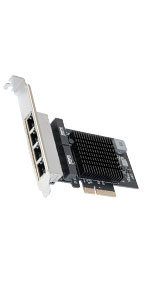
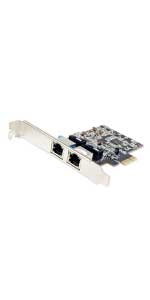
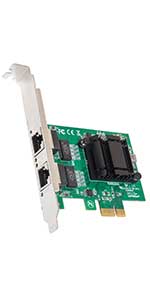
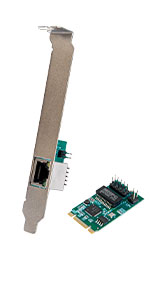
The IO Crest SI-PEX24059 is a high-performance 2.5 Gigabit Ethernet PCIe network card designed to deliver ultra-fast, reliable wired connectivity. Compatible with a wide range of PCI Express slots and operating systems, it includes both standard and low-profile brackets for versatile installation. Perfect for professionals seeking to future-proof their desktop or server networking with enterprise-grade VLAN support and hassle-free plug-and-play setup.




| ASIN | B07RF4SZ8R |
| Best Sellers Rank | #70 in Internal Computer Networking Cards |
| Customer Reviews | 3.9 3.9 out of 5 stars (1,097) |
| Date First Available | May 2, 2019 |
| Item Weight | 3.2 ounces |
| Item model number | SI-PEX24059 |
| Manufacturer | I/O Crest |
| Product Dimensions | 4.3 x 0.5 x 5.5 inches; 3.2 ounces |
| Release date | May 2, 2019 |
| Type of item | Personal Computers |
T**Y
Gets HOT, but pulls data at 10GbE. Requires Thunderbolt, not just USB 4!
Have not used it for extended periods of time, but seems to work correctly when combined with a USB4 or Thunderbolt4 port. It does get HOT, so don't put anything on top of it. Windows 11 driver worked just fine out of the box, but I did tweak some settings. I do this on all my Ethernet adapters. If your USB4 port is not also Thunderbolt, this device will not show up as a network adapter. It uses the Aquantia chip. It will show up as a USB device with no function.
E**Y
Is revision 03, but be wary of Linux/BSD use
Edit: as of XigmaNAS 13.1.0.5.9725 this adapter is now recognized and works as-expected! Thanks to ms49434 and zoon01 for applying a kernel patch to accept the PHY that is present. Original review follows. The adapter arrived in a small, cardboard box. The heatsink is attached securely. A hardware check indicates that the chip is revision 03. Under Windows 10/11, the adapter is usable with no additional effort or configuration on the user's side. Under Linux/FreeBSD, the adapter may or may not work depending on the version of the driver used to attempt init. Under FreeBSD specifically, support for the I225 was added in 13.1 via 𝚒𝚐𝚌, however the driver performs an unnecessary PHY vendor ID check, which may fail if the adapter reports an ID that isn't listed in an internal table. The fix (recommended by Intel themselves) is to no longer perform this check and instead assume a PHY for all I225 adapters. This fix is available in FreeBSD 13.2 and/or 14, and would need to be backported if using anything earlier. Examples; TrueNAS Scale 22.12.0 supports this adapter, while XigmaNAS 13.1.0.5.9687 (latest as of this review) includes 𝚒𝚐𝚌, but fails to init with the adapter I received.
D**N
Linux/Fast/Stable
Linux plug and play. Works great on 6x kernels. 600MB/s to and from my TruNAS machine running four Hitachi 10TB platter drives in zraid. Performance is steady and stable. EDIT Nov.25 Updated to 1 star. Less if I could. I've had two of these burn out this year and had to return them. Still recognized as present but fail to connect or get an IP. Real pain too because I have to remove my 4090 bracket to remove the card. Truly happy this works because it's the only x1 card I could find. Most of my board is blocked off by my RTX4090 and brace. Only other exposed slot is x8 but it has a card with 4x m.2 nvme drives on it. EDIT 8/16/2025 The card lasted less than three weeks and died. Does not recognize that a cable is even plugged in. I bought two and the second is working in place of the failed nic. We will see how long that lasts.
A**R
Great performer for home use. May not explicitly match photo.
Only reason I'm knocking off a star at all is the product doesn't explicitly match the advertised photo this time. I've bought two of these previously, and received the version in the photo: half height, quarter length, black PCB. What I received this time was half height, half length, red PCB. So, if you're carefully planning your build's interior aesthetic, you may get a svelte, miniature black card, or you may get a larger, flashy red card. I'm sure I'll find a happy use for it, as I'm really just buying a few extras because the price is good. That said, these Marvell Acquantia AQC107 chips perform just fine, they give me up to 1.09GB/s transfer speeds from my NAS, consistently. Just replace the thermal pad on it prior to deploying, as the stock pad is kind of trash quality and will let the chipset overheat, causing throttling.
R**R
Upgrade to 2.5gig Ethernet PCIe Slot
This upgrade to 2.5gig Ethernet is easy to install into a PCIe slot and drivers are included on the supplied mini CD. Many drivers are included including Windows 11, 10, Mac and Linux. Full speed is achieved using Cat 6 wire. Both full form and small form factor hardware included - easy to change out. Ethernet socket has two LED indicators for link and speed which is good since other cards may not have these indicators or have holes to see through to an LED on the inside surface of the card. The Realtek chip and the software may be able to go to 10gig in the future since there is some references in drivers and other information of the system. Maybe a firmware update in the future for this? Overall, this is a great product and very reasonable in price and support.
A**R
Works well for what I needed it for
C**S
Husband installed it into his computer. Works great. He has two internet lines coming into the house and there has been no issues with it, both internet lines are coming in and hooked up, it creates its own load balancer and manages both internet lines appropriately.
I**N
works amazing. bought two of those specifically because i know they are Linux compatible as well as windows. i use one for a custom Linux based clearos firewall everything works out of the box. used the other one for a custom freenas nas also linux based and everything works out of the box. nic teaming was a breeze with this in freenas i have 4ghz throughput. its fast!. this nic was also tested with vmware esxi and was picked up out of the box. seller was very good and shipping was fast i definitely recommend and will be buying again. the price for this is simply too good.
J**Y
I bought this card as I wanted faster than the built in 1Gbs, but my Dell computer only has a single PCIe 3.0 x16 slot, which is occupied by a GPU, and an x1 slot. I know x1 slots have a maximum bandwidth of 8Gbs, so I wasn't expecting full 10Gbs speed out of it, but nonetheless iperf benchmarks are giving me a decent 7,5Gbs throughput. I note that other users have comment on heat. My PC has a decent case fan on the PCIe slots, so this has not been an issue to me, and it's maintaining around 47-49C under load. The card worked out of the box on Ubuntu 24.04 LTS and was easy to set up. Overall it's a decent card for the money, if your computer's PCIe slot availability limits your options.
S**E
Mis en place sur un petit serveur escorté fonctionne parfaitement
Trustpilot
Hace 2 semanas
Hace 5 días